
Seller guide
Everything you need to run your shop, step by step.
English · October 2026shwetopadma.com
Chapter 1
Welcome
Shwetopadma is a place where buyers discover things made by makers and small businesses across Bangladesh. This guide walks you through everything you do as a seller, from opening your shop to delivering your hundredth order.
How selling works
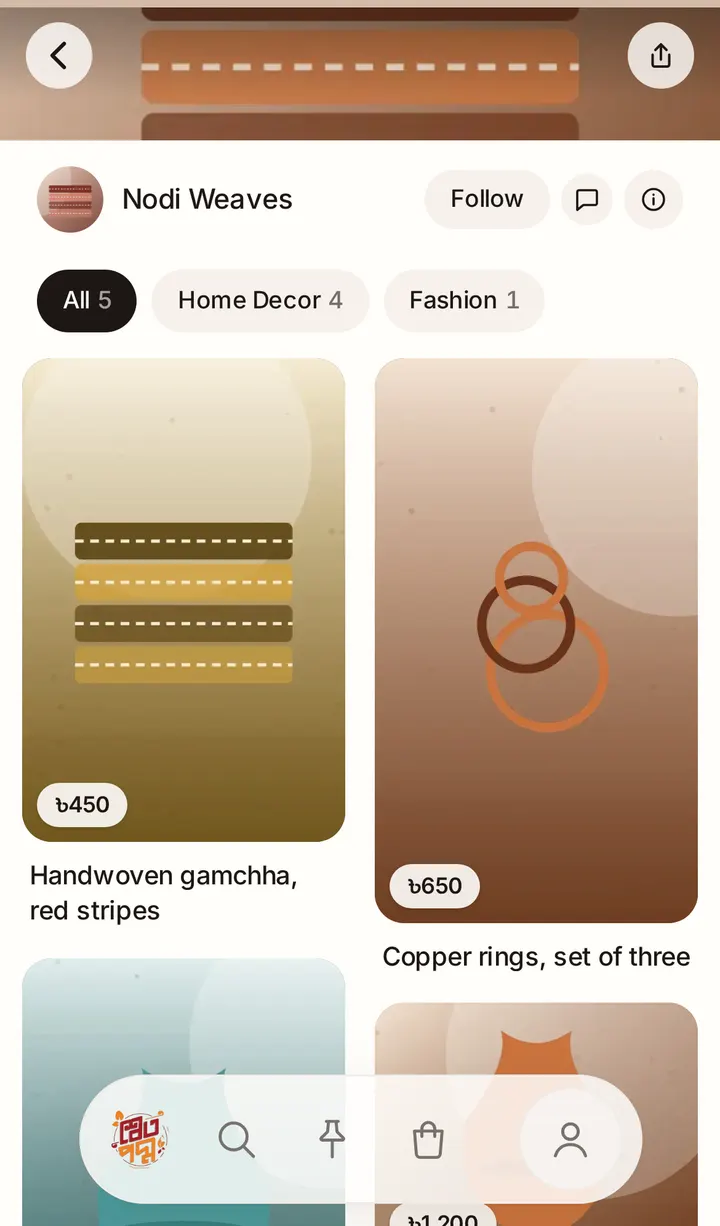
Buyers find your products in the feed, in search and on your shop page. They add them to their bag and order, or message you to agree a custom order.
Buyers pay you directly: cash on delivery, bKash, Nagad, Rocket or a bank transfer. Shwetopadma never receives, holds or passes on your money.
Good to know
- You can start free on the Hobby plan, or pay monthly for more products, videos and custom orders. See Plans and fees.
- You run your shop from the website, on your phone or a computer.
Your products and your posts
A product is something you sell: its photos, price and stock. You add it once.
A post is new photos or a video about a product you already have: a new colour, a customer's photo, back in stock. Posts keep your shop fresh in the feed without adding the same product again.
How to use this guide
Each chapter covers one part of your shop, with the buttons named exactly as you see them on screen. You can read it on your phone, or tap Download PDF on the contents page to keep a copy.
Chapter 2
Open your shop
Every shop is reviewed before it opens. Applying takes about 5 minutes.
Read the rules first
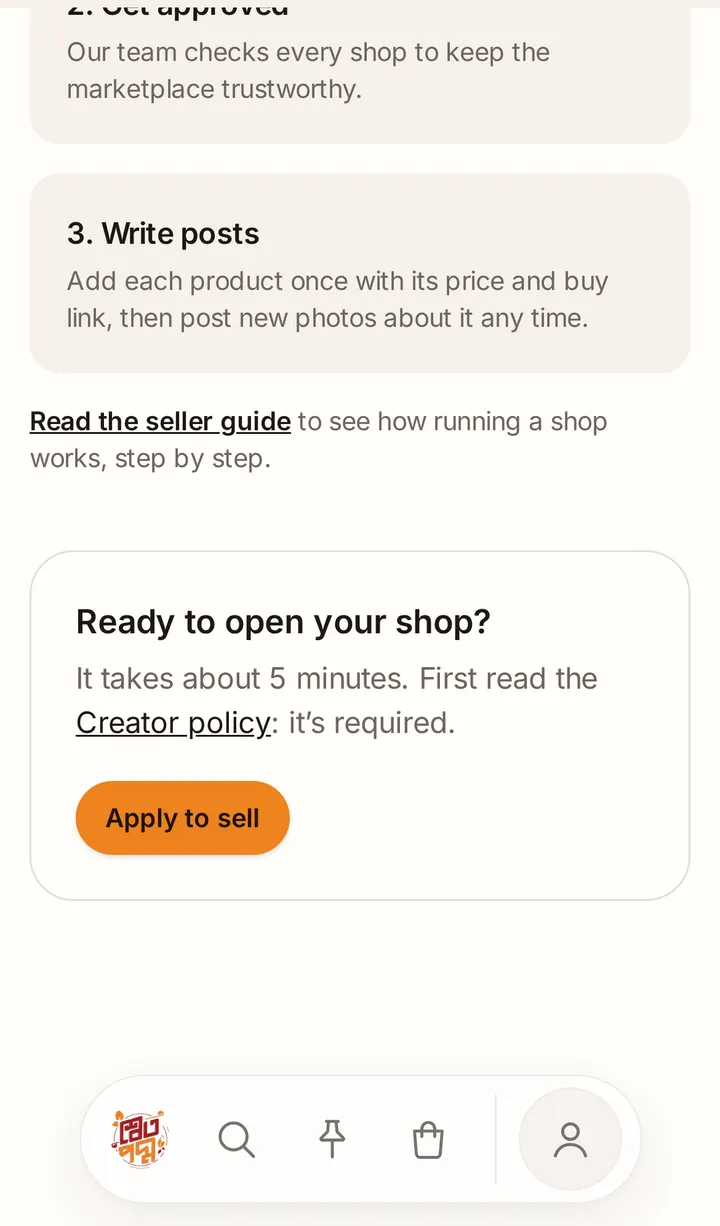
Tap Sell on Shwetopadma on your profile, or Sell with us at the bottom of any page, and read the Creator policy. Reading it is required: by applying, you agree to it.
Verify your email and mobile
You need a verified email address and mobile number before you can apply. If one is missing, the form shows Before you apply with a button Verify in account settings. Enter the code we send you, then come back.
Fill in the application
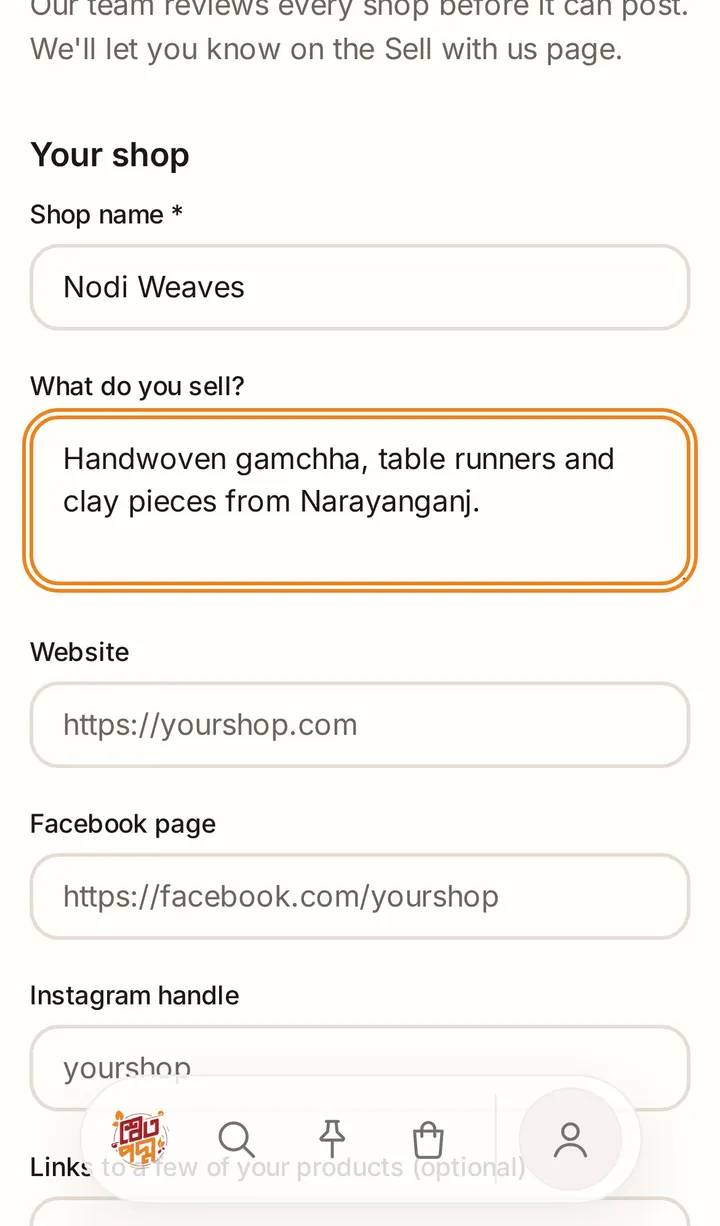
Tap Apply to sell and fill in:
- Your shop: shop name, what you sell, and your website, Facebook page or Instagram if you have them. You can add links to a few of your products.
- Contact & verification: your business address and district. You can add a photo of your NID or trade licence. Only our review team sees it; it is never shown on your shop.
- Policies: your return and refund policy and your delivery policy. These show on your shop page.
Tick I have read and agree to the Creator policy and community rules, then tap Send application.
Wait for our answer
We usually reply within 2 working days, by email and on the Sell with us page:
- You're approved! Your shop is open. Tap Your shop in the bar at the bottom to start.
- We need a little more information: read the note from our team, then tap Update application.
- Your application wasn't approved: the note says why. You can tap Apply again later.
Good to know
- Your shop's web address is made from its name when it opens. Renaming the shop later doesn't change the address.
Chapter 3
Plans and fees
Every shop is on a plan. You can start free on Hobby and move up when you need more.
The three plans
- Hobby (free): up to 10 live products and photo posts, with your shop, messages and orders as usual. We record a 10% commission on delivered sales.
- Starter (৳200 a month): up to 100 live products, photo and video posts, and custom orders. No commission.
- Growth (৳500 a month, coming soon): up to 500 live products and everything in Starter, plus order tools (search, dates, CSV export, packing slips, bulk confirm and ship, private notes) and shop analytics. No commission.
Good to know
- A live product is one that's published. Drafts don't count. Photos, posts and options belong to their product, so they never count on their own.
- Every plan gets the same place in the feed: paying never pushes other shops down.
- Buyers always pay you directly. The plan fee is the only thing you pay Shwetopadma.
Founding sellers
Shops approved before the founding period ends are founding sellers: they get Starter free for 3 months, starting on the day buyers can shop. If you join later in that period, you get the rest of it; everyone's free months end on the same date. Your plan page shows the dates.
When the free months end, you can pay for Starter to keep it, or do nothing and your shop moves to Hobby.
See your plan
Your shop page shows your plan under your shop's name, with how many products are live, such as Starter · 12/100 live. Tap it to open Your plan, which shows what's included, when it ends and your payments.
Pay for a plan
Plans are paid on the website (the phone app emails you the link).
- On Your plan, choose the Plan and how many Months: 1, 3, 6 or 12.
- Choose Pay by: bKash or Bank transfer. The page shows the exact amount and the number or account to pay. By bKash, bKash's cash-out charge is added.
- Pay from your bKash or bank, then type the transaction ID (or bank reference) and tap I've paid: send the transaction ID.
Your plan starts at once while our team checks the payment. It then shows Confirmed. If we can't find it, it shows Not found yet: we open a support conversation with you, and you have 48 hours to sort it out (a countdown shows on your shop page).
Good to know
- Each transaction ID can be used once, and one payment can wait to be checked at a time.
- Nothing renews or charges by itself. You choose when to pay.
Renew or move up
7 days before your plan ends, we email you and Renew or move up opens on Your plan: a renewal continues from your current end date. 3 days before, a countdown (Plan ends in) shows on your shop page. Moving from Starter to Growth starts at once, and your unused Starter time becomes extra Growth days.
If a plan ends
After the end day you keep everything for 48 hours (Grace ends in). Then your shop moves to Hobby. Nothing is deleted:
- Your videos are kept, but buyers see only their cover photo until you're back on Starter.
- Custom-order products become drafts, and open offers with custom pieces are withdrawn. Custom orders already accepted carry on.
- If you have more live products than Hobby allows, nothing new can go live. You have 3 days to choose on Your plan which stay live. After that, your most recently published ones stay live and the rest are hidden until there's room.
Chapter 4
Set up your shop
Before your first sale, tell buyers who you are, how you deliver and how they can pay. Open Your shop in the bar at the bottom, then Settings under Manage. Each row opens its own page; tap Save when you're done.
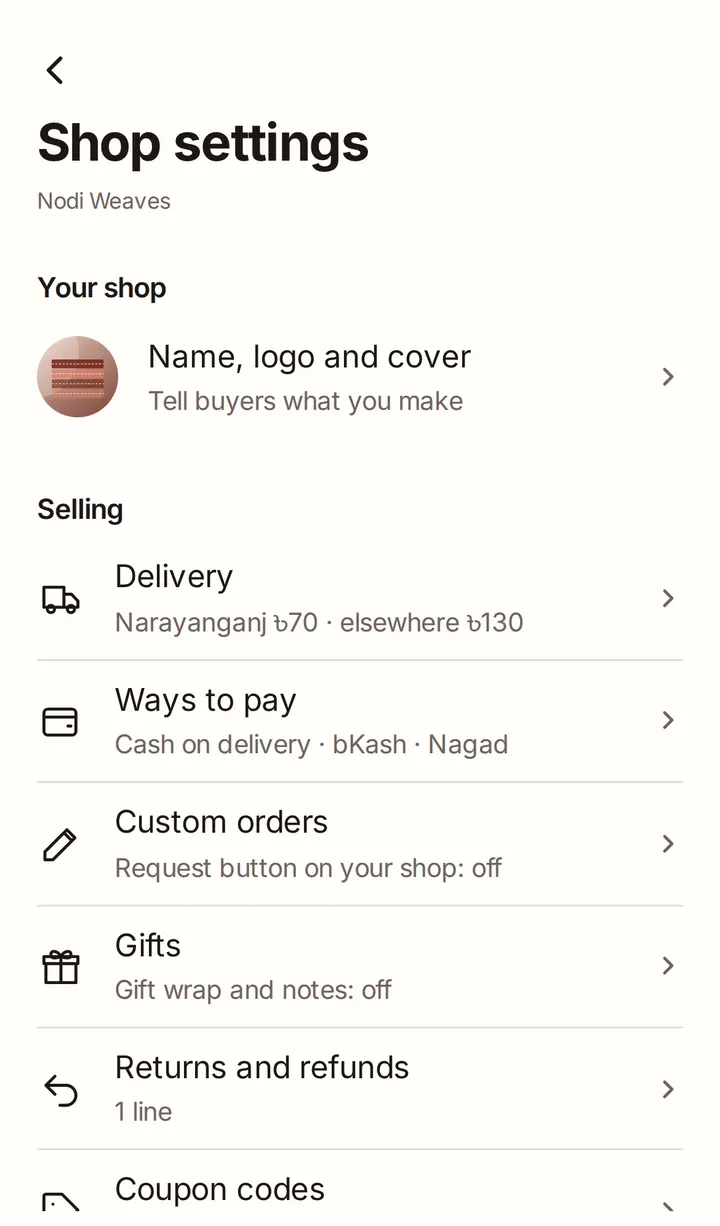
Name, logo and cover
Upload your Shop logo and a Cover photo: the slim photo across the top of your shop. Write a few lines in About your shop. Photos can be up to 4 MB.
Delivery
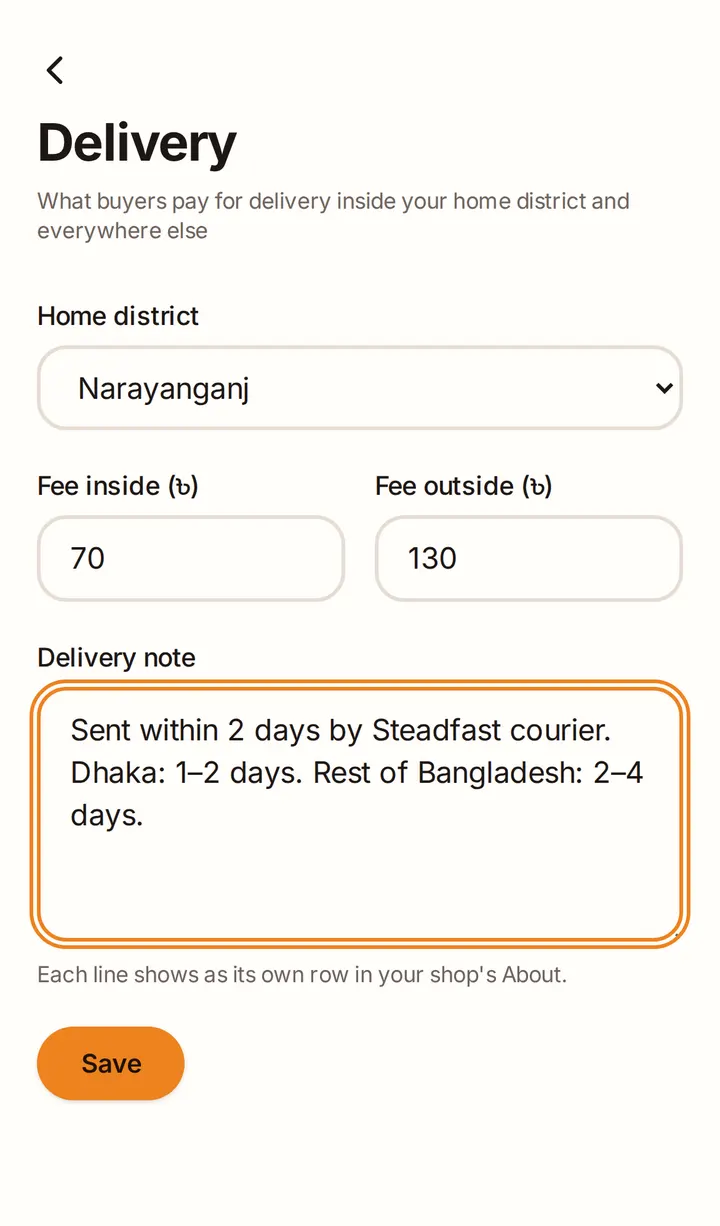
Choose your Home district and set two fees: Fee inside your district and Fee outside it. Buyers in your district pay the inside fee; everyone else pays the outside fee. Use Delivery note for anything else, such as delivery times. Each line shows as its own row on your shop page.
Ways to pay
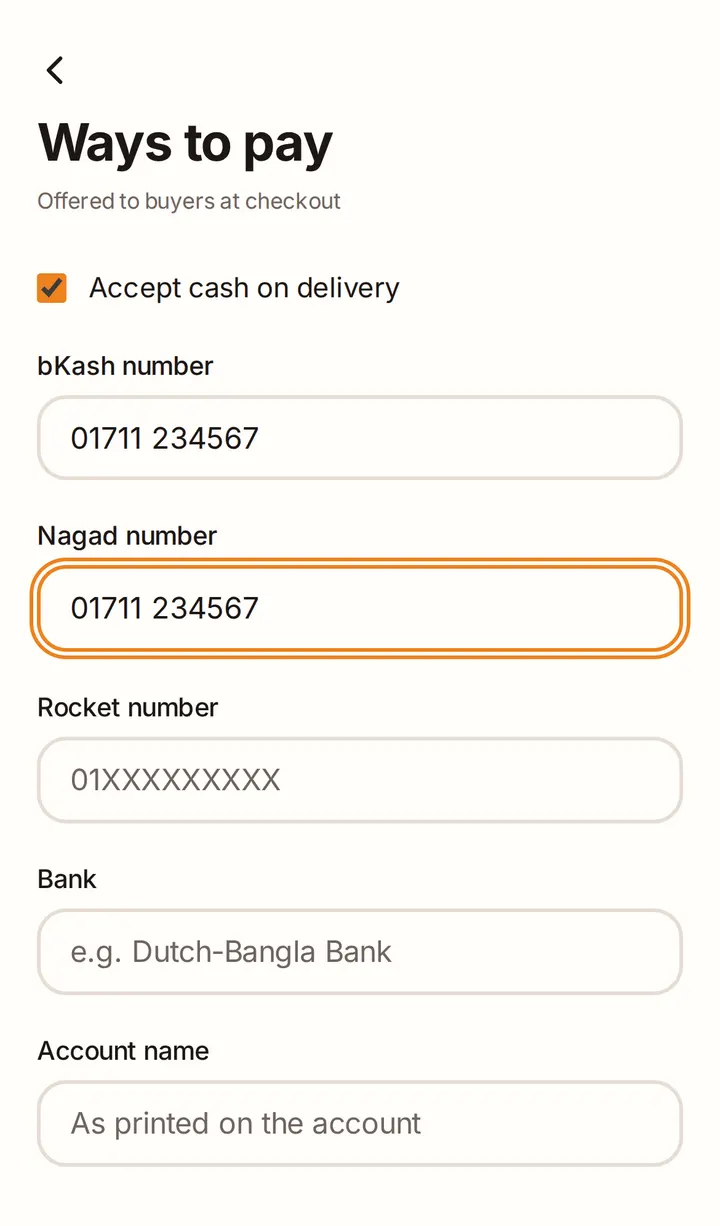
Choose how buyers can pay you:
- Accept cash on delivery (on unless you turn it off).
- Your bKash number, Nagad number or Rocket number.
- A bank account: Bank, Account name, Account number and Branch.
A way to pay is offered to buyers once its details are filled in. Buyers send the money themselves and type in the transaction ID, and you confirm it arrived.
Good to know
- Your shop page only shows the names of your payment methods, never your numbers. Buyers see the numbers when they pay.
- Products ask for the delivery charge in advance unless you change it, so set up at least one of bKash, Nagad, Rocket or a bank account.
Returns and refunds
Write your Return and refund policy. Buyers read it before they order, and you can't publish products until it's filled in.
Custom orders, gifts, links and contact
- Custom orders (Starter and Growth): show Request a custom order on your shop, so buyers can ask you to make something.
- Gifts: offer gift wrap (free or for a price) and let buyers add a gift note.
- Coupon codes: codes buyers type at checkout for money off (see Campaigns and coupons).
- Links: your website, Facebook page and Instagram.
- Contact and location: WhatsApp, phone, contact email and location.
Get your shop ready
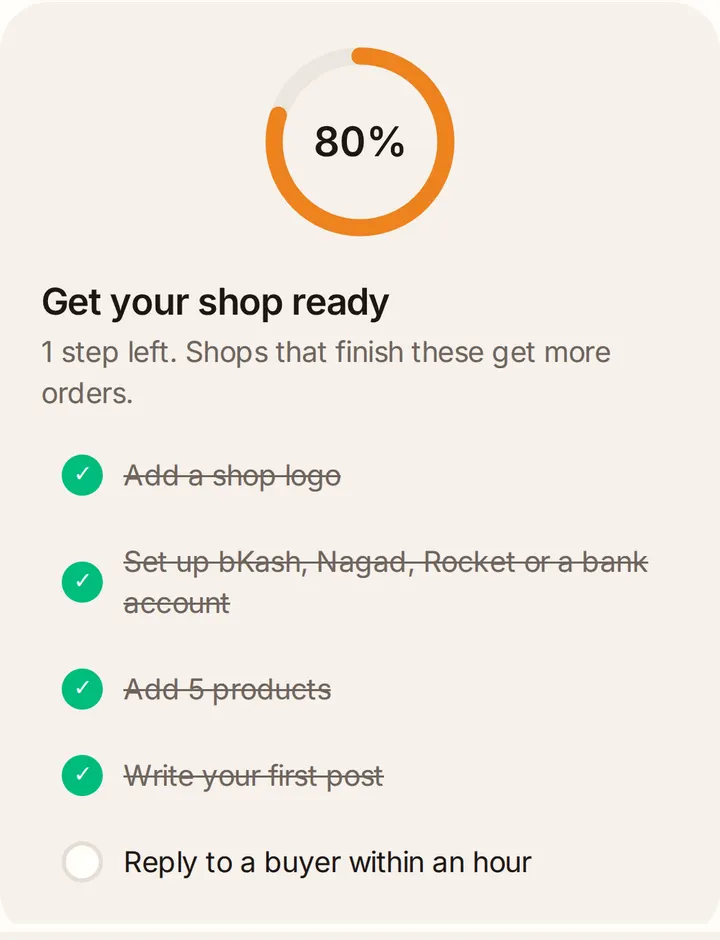
Your shop page shows a checklist, Get your shop ready, with five steps: add a shop logo, set up bKash, Nagad, Rocket or a bank account, add 5 products, write your first post, and reply to a buyer within an hour. Shops that finish these get more orders.
Chapter 5
Add a product
Add each thing you sell once, with its photos and price. Later you can post new photos about it any time.
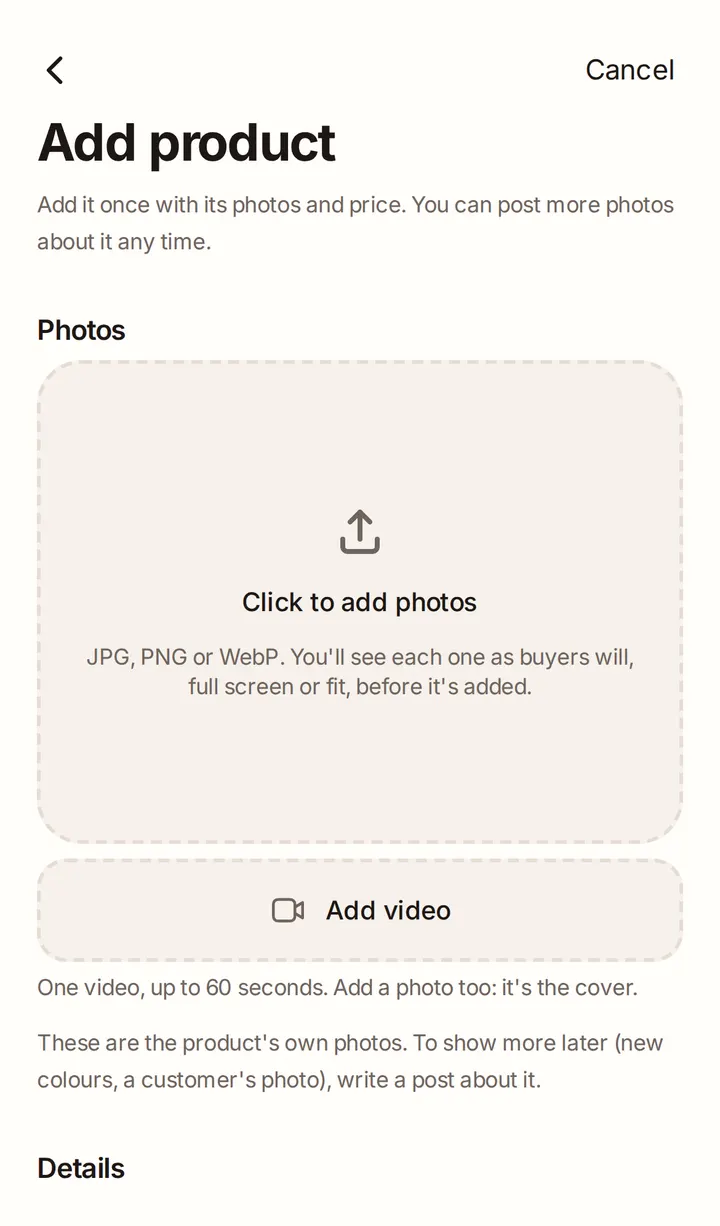
Open Add product
Tap the orange + in the bar at the bottom, then Add a product. Or tap Add product on your shop page.
Add your photos
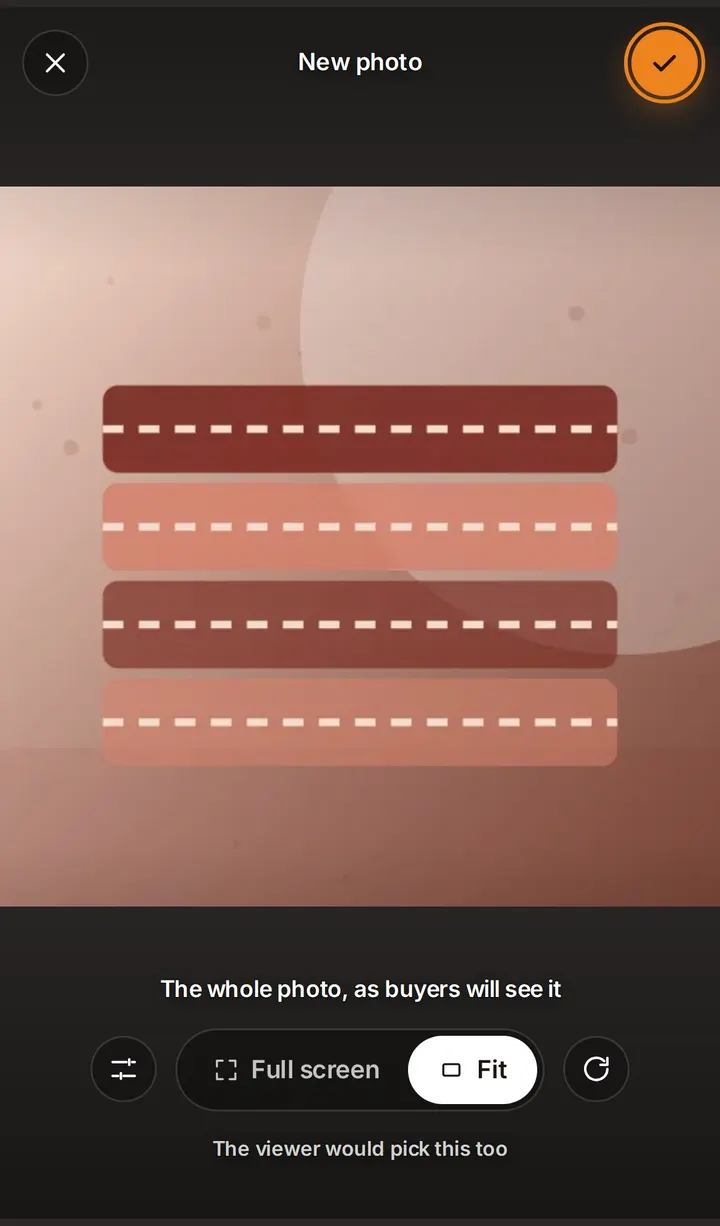
Tap Click to add photos and pick up to 8. Each photo opens full screen first, as buyers will see it:
- Full screen fills the screen. Drag to choose what shows, and pinch to zoom.
- Fit shows the whole photo.
- The sliders button opens Light and colour: brightness, contrast and warmth. The round arrow turns the photo.
Tap the tick to add the photo.
Check your cover
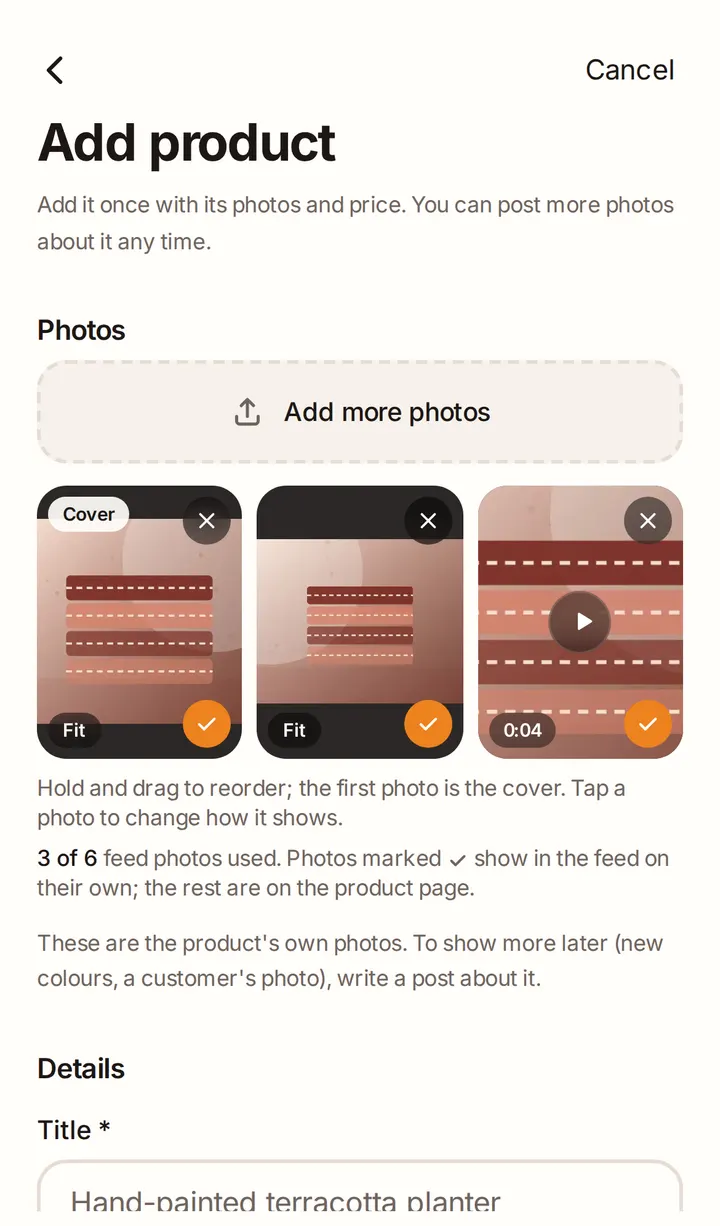
The first photo is the Cover: buyers see it first in the feed. Hold and drag a photo to move it. Tap a photo to change how it shows; there, the star makes it the cover.
Good to know
- Up to 8 photos. JPG, PNG or WebP. Large photos are made smaller on your phone before they upload.
- Photos marked with a tick show in the main feed; the others are only on the product page. There is a limit of feed photos per product (6 unless we change it). If you go over, we ask which photos to swap.
Add a video (optional)
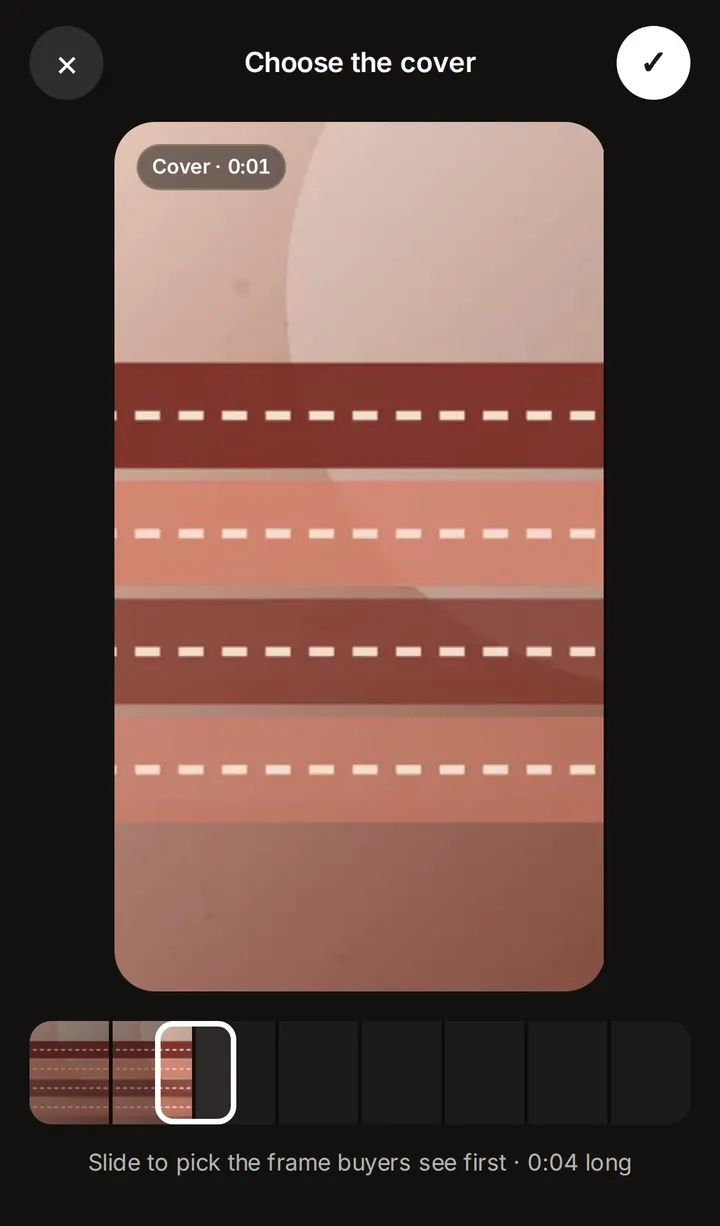
Videos come with Starter and Growth (see Plans and fees). Tap Add video and pick one video: up to 60 seconds and 200 MB. Slide to choose the frame buyers see first, then tap the tick. That frame becomes a photo.
The video uploads, then we prepare it so it plays smoothly on every phone. You can save the product straight away: we'll let you know when your video is ready. Buyers only see the video once it's ready.
Good to know
- One video per product. A photo is always the cover; the video goes after it.
- Keep the page open until the video has finished uploading (the tile shows Uploading with a percentage).
Write the details
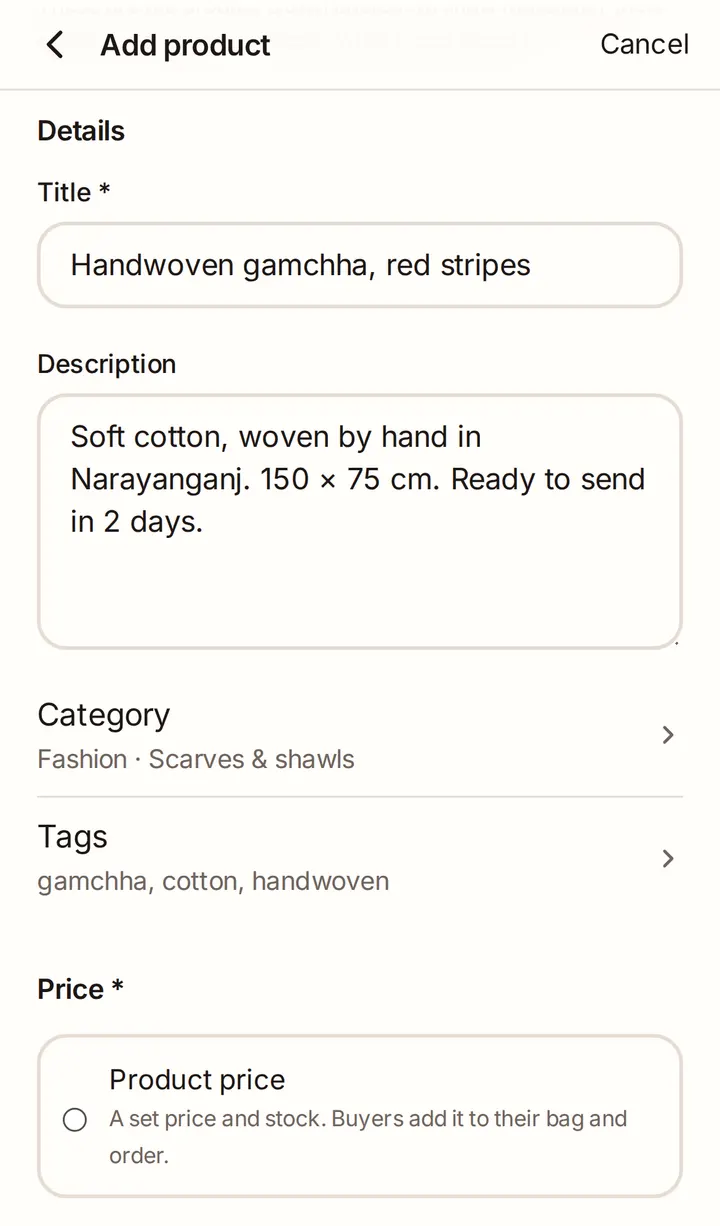
- Title: what it is, in a few words.
- Description: materials, size, how it's made, delivery time.
- Category: choose where it belongs. If the category has smaller groups, pick one of those too.
- Tags: the words buyers search for, separated by commas. Up to 15.
Choose how it's priced
- Product price: a set price and stock. Buyers add it to their bag and order.
- Custom order (Starter and Growth): made to the buyer's wishes. They message you, you agree the details and send an offer in chat. You can show a Starting price and a Making time.
For a product price, tap + Add option (colour, size…) if it comes in different versions: up to 2 options, such as colour and size. Then fill in the Price (৳) and Stock for each one.
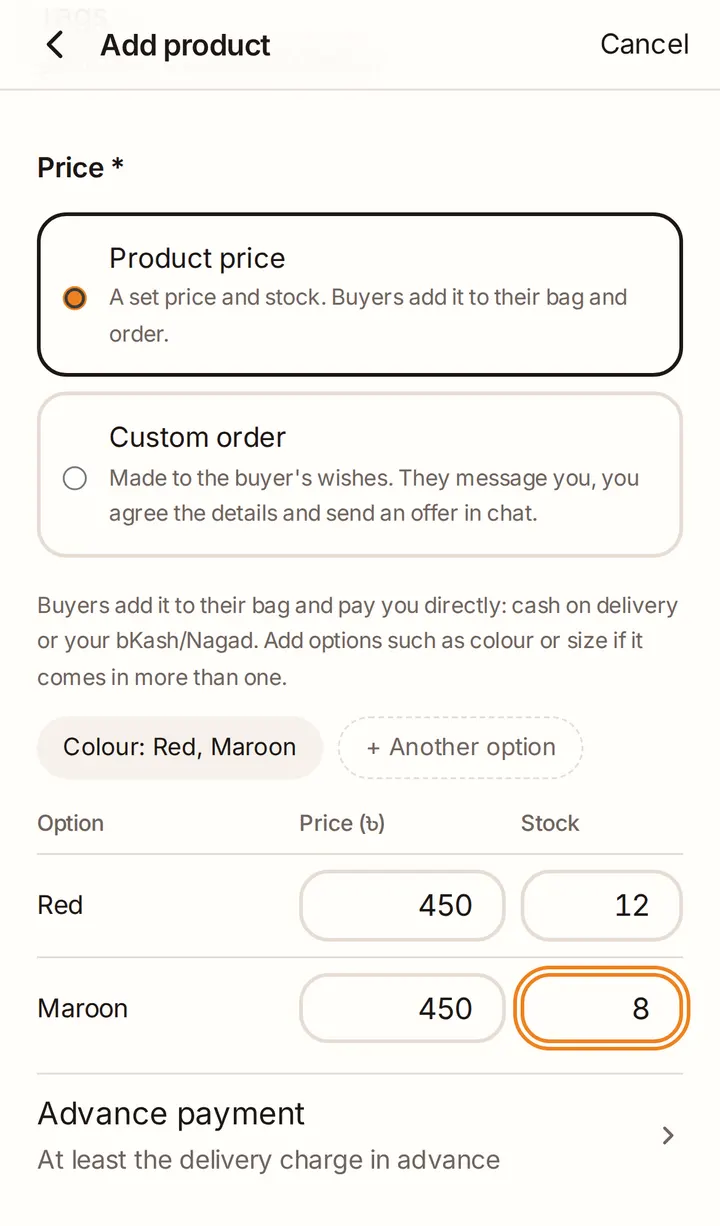
Advance payment
Choose what buyers pay before you send the order:
- Delivery charge in advance (the usual choice)
- No advance
- Fixed amount in advance, per piece
- Full price in advance
Buyers pay any advance by bKash, Nagad, Rocket or bank transfer. Cash on delivery is only offered when nothing is due in advance.
Publish
Tap Publish and it's live. Not ready yet? Tap Save as draft and finish it later from Drafts on your shop page.
Good to know
- You can't publish until your shop has a return policy (Settings → Returns and refunds).
- Your plan sets how many products can be live at once: 10 on Hobby, 100 on Starter.
- Your first published product starts your new shop spotlight: 14 days when we show your shop to more buyers.
Chapter 6
Write posts
A post shows something new about a product you've added: a new colour, a customer's photo, back in stock. It appears in the feed and on the product's page.
Start a post
Tap the orange +, then Write a post. Or open a product's ··· menu on your shop page and tap New post. You need at least one product first.
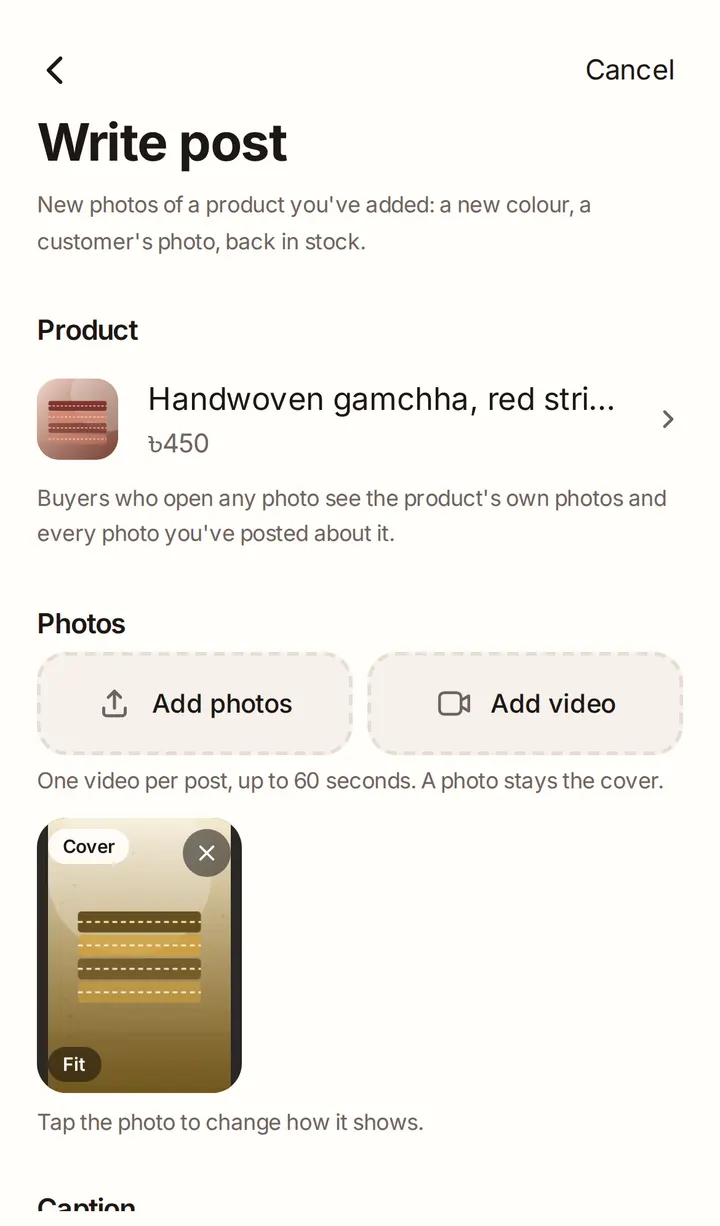
Choose the product
Pick the product the post is about under Product. Buyers who open the post can order that product.
Add photos, a video and a caption
Add up to 8 photos and, on Starter or Growth, one video, the same way as for a product. Write a Caption of up to 1,000 characters.
Tap Publish, or Save as draft to finish later.
Good to know
- A post's photos count towards its product's feed photos. If there are too many, we ask which ones to show.
Chapter 7
Your shop page
Tap Your shop in the bar at the bottom to open your shop page. It is where you run everything.
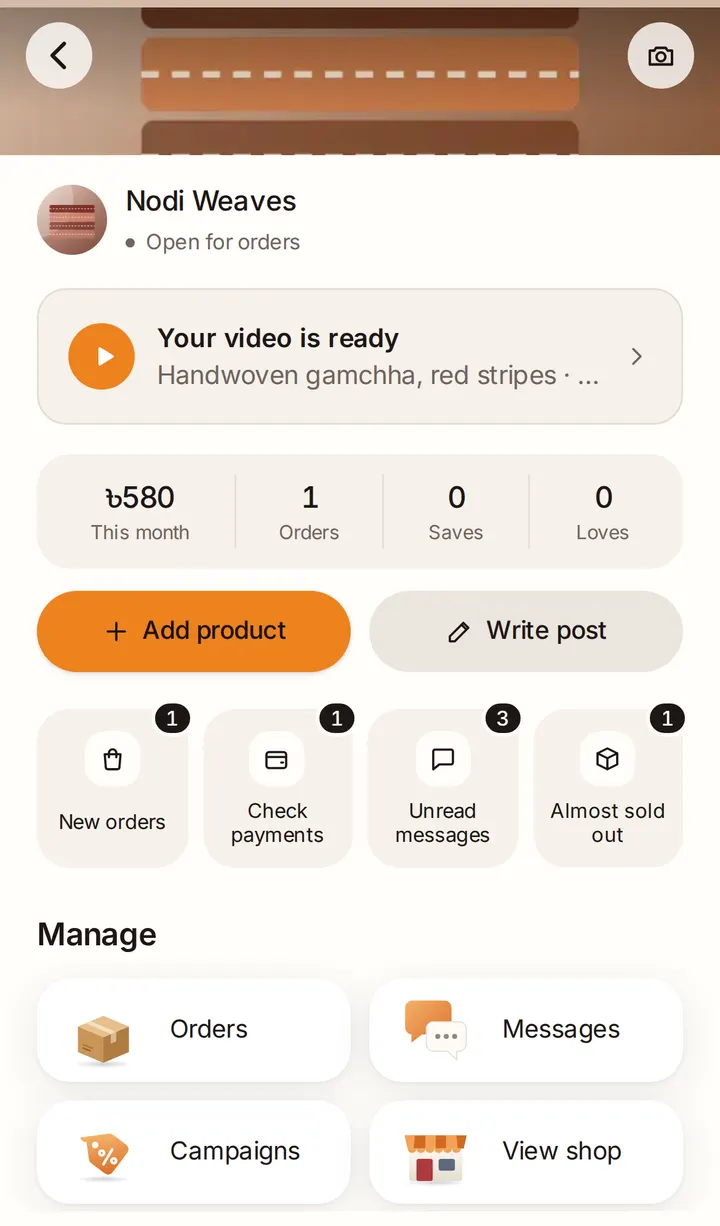
Your numbers
At the top you see This month (your sales since the 1st, without cancelled orders), Orders, Saves and Loves.
Needs you
Four tiles show what's waiting, each with a count:
- New orders: orders to confirm.
- Check payments: buyers who say they've paid.
- Unread messages
- Almost sold out: products with 2 or fewer left.
Manage
Orders, Messages, Campaigns, View shop (your shop as buyers see it), Settings and Guide (this guide).
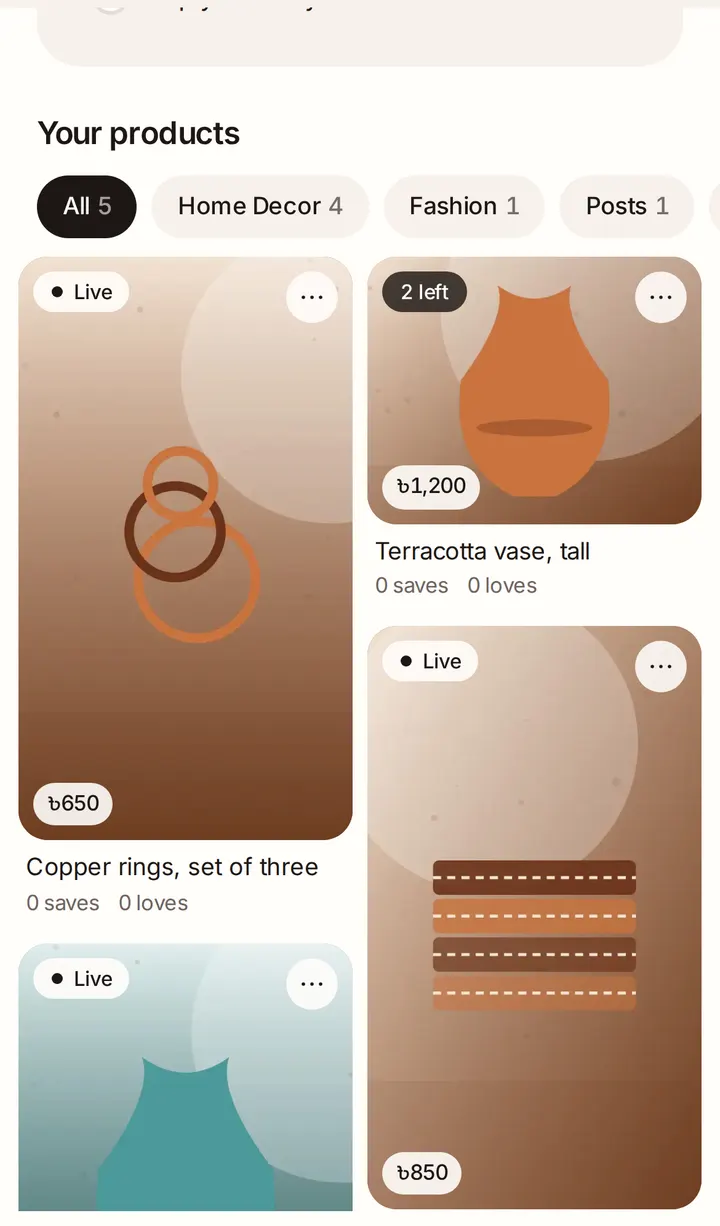
Your products
Under Your products you see everything you've added. The chips filter them: by category, Posts, Drafts and Almost sold out. Each card shows Live, Draft, how many are left or Sold out.
Tap ··· on a card to write a New post, Edit or Delete. Deleting a product also deletes every post about it, and it can't be undone.
Your new shop spotlight
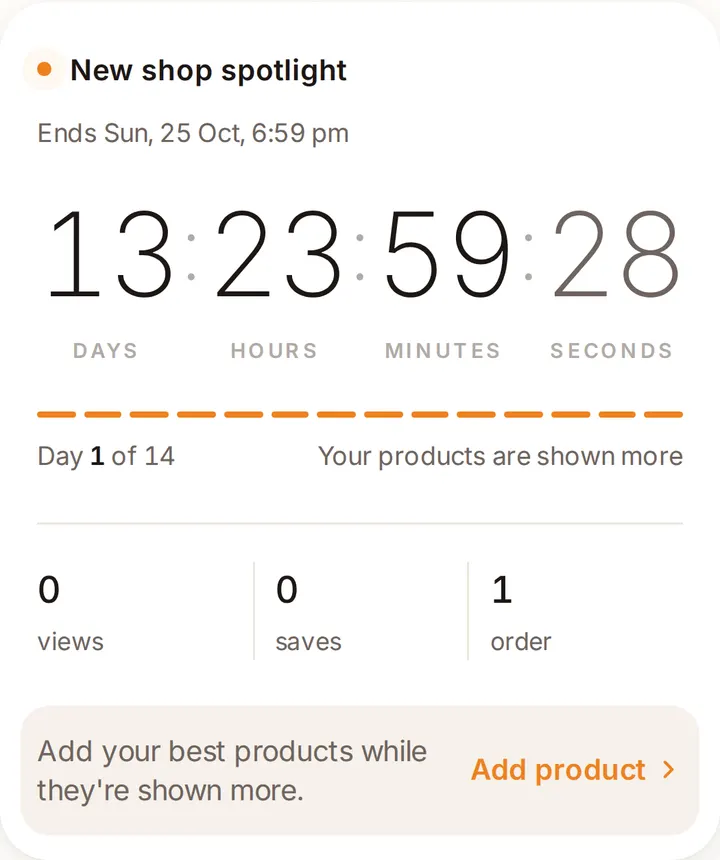
When you publish your first product, your shop gets a new shop spotlight: for 14 days we show your products to more buyers. The card counts down and shows your views, saves and orders. On the last day, post something new to make the most of it.
Chapter 8
Orders
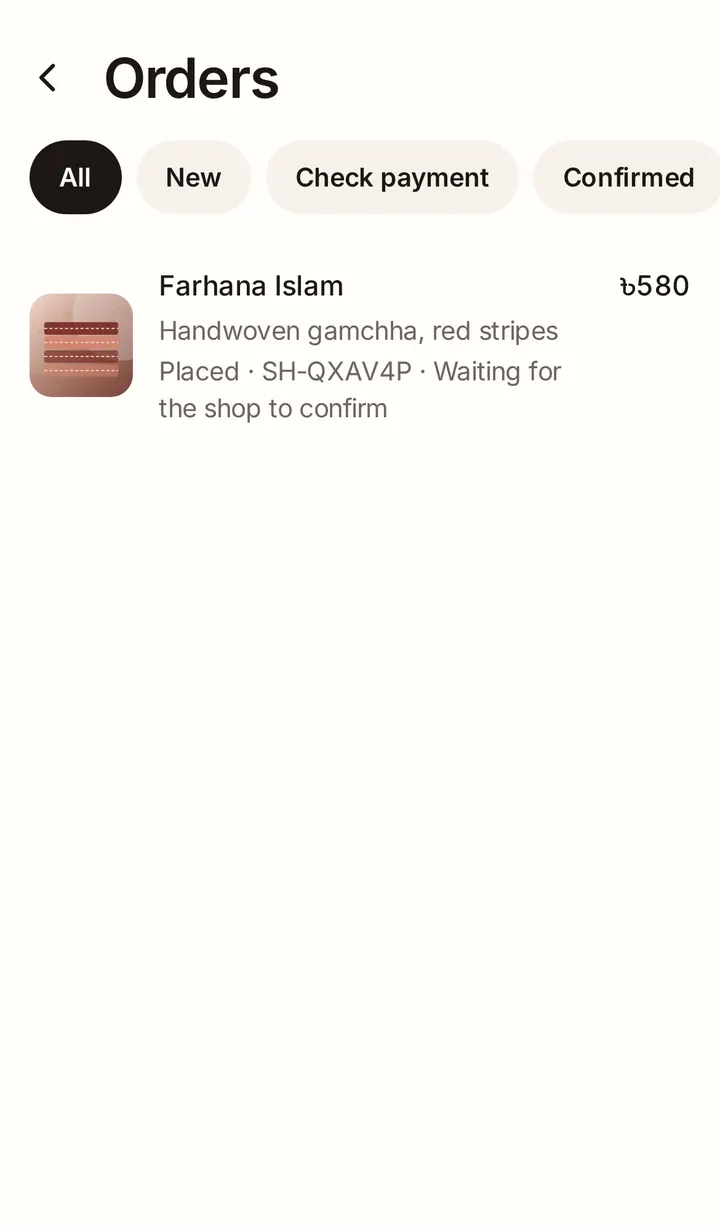
Every order goes through four steps: New order, Confirmed, Shipped and Delivered. Open Orders in the bar at the bottom; the count shows how many new orders are waiting.
Confirm or decline a new order
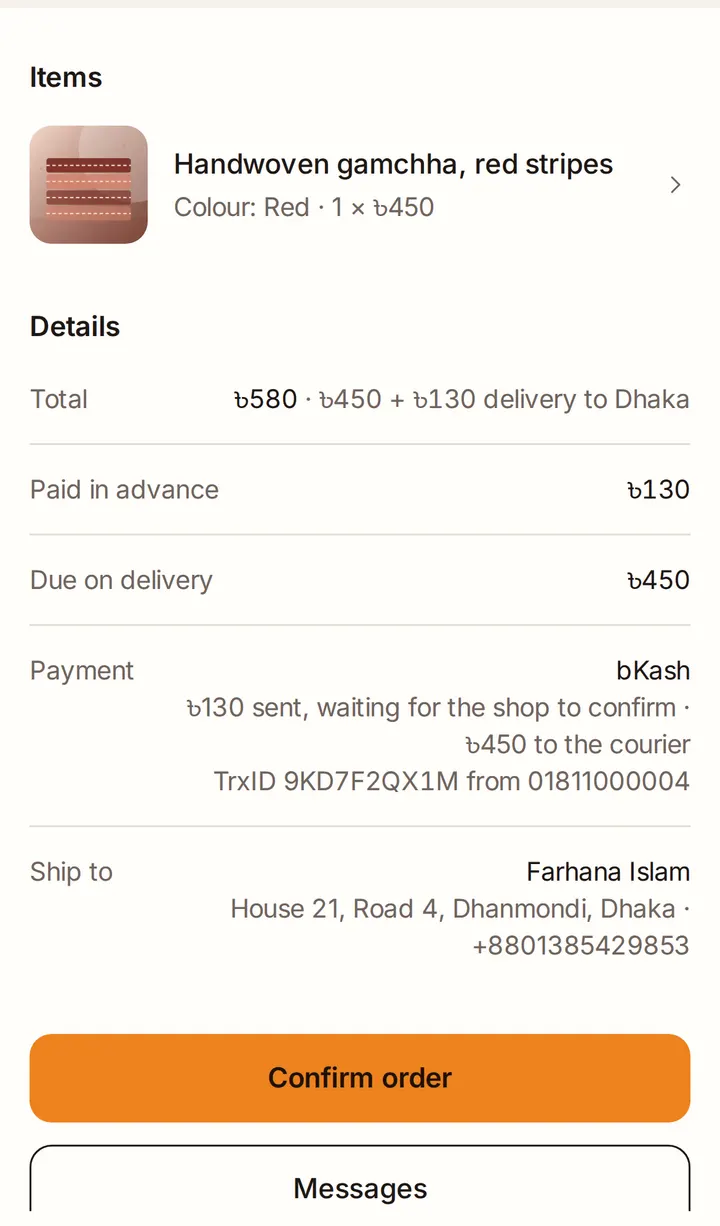
Open the order to see the items, the total, the address and the buyer's verified phone number. Then:
- Tap Confirm order when you can make and send it.
- Tap Decline if you can't. Tell the buyer why, then tap Decline order. The stock goes back.
Check the payment
When a buyer pays an advance, they type in the transaction ID (TrxID) and the number they paid from. The order shows under Check payment. Check your bKash, Nagad, Rocket or bank account, and when the money has arrived, tap Payment received.
Good to know
- Never send an order because a buyer says they've paid. Check that the money has arrived first.
Send it
When the parcel goes out, tap Mark shipped. You can add a courier or tracking note. When it arrives, tap Mark delivered. If the buyer pays on delivery, this also marks the order as paid.
Gift orders
A gift order shows Gift order: no prices in the parcel. Leave out the price, invoice and receipt. If it asks for gift wrap or has a note for the card, it shows that too. If you have a question, message the buyer, not the person receiving it: it's a surprise.
How stock works
Stock is taken when an order is placed, and goes back if the order is declined or cancelled. Only the buyer can cancel, and only while the order is new.
Good to know
- Every change you make posts a line in your chat with the buyer, so they always know where their order is.
Chapter 9
Messages and custom orders
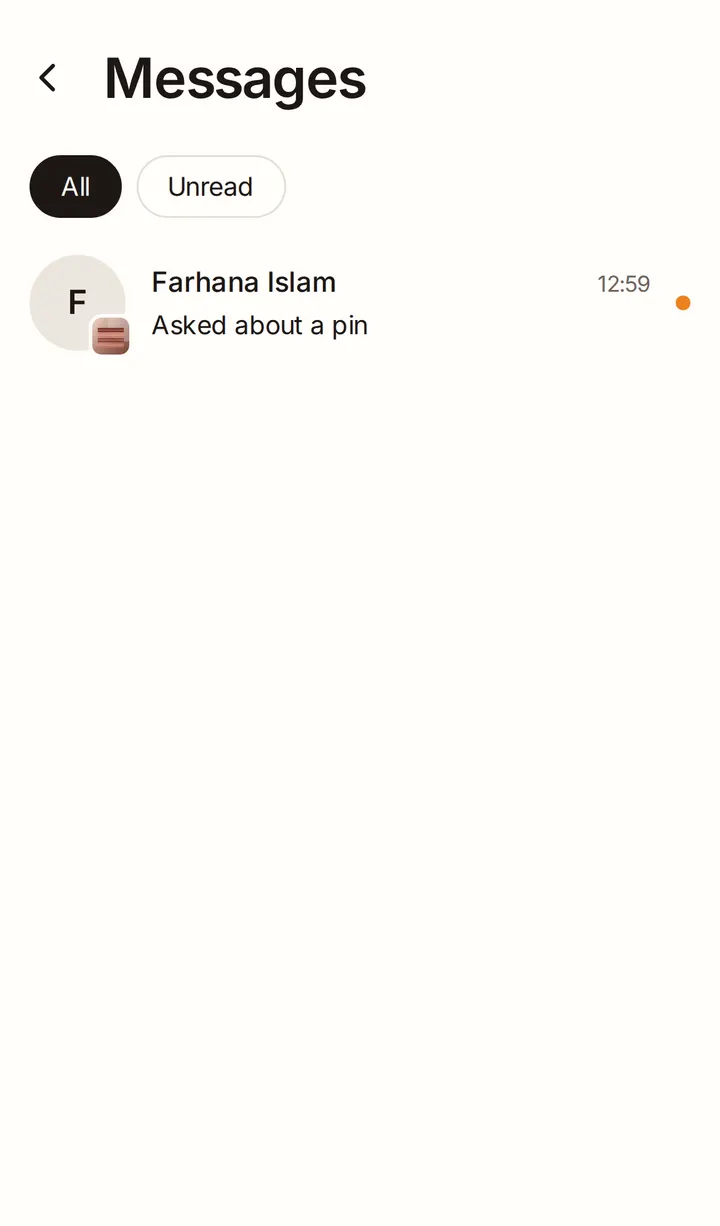
Buyers can message your shop about a product or a custom order. Open Messages under Manage. Try to answer within an hour: it's one of the steps to get your shop ready, and buyers order more from shops that reply.
Chat with a buyer
Write messages and send photos. If the buyer asks about a product, its card shows in the chat. Their latest order with you is pinned at the top.
Custom order requests
If you show Request a custom order on your shop, buyers can send you a request: what they'd like, their budget, when they need it and a reference photo. It arrives as a card with the button Send a custom offer.
Send an offer
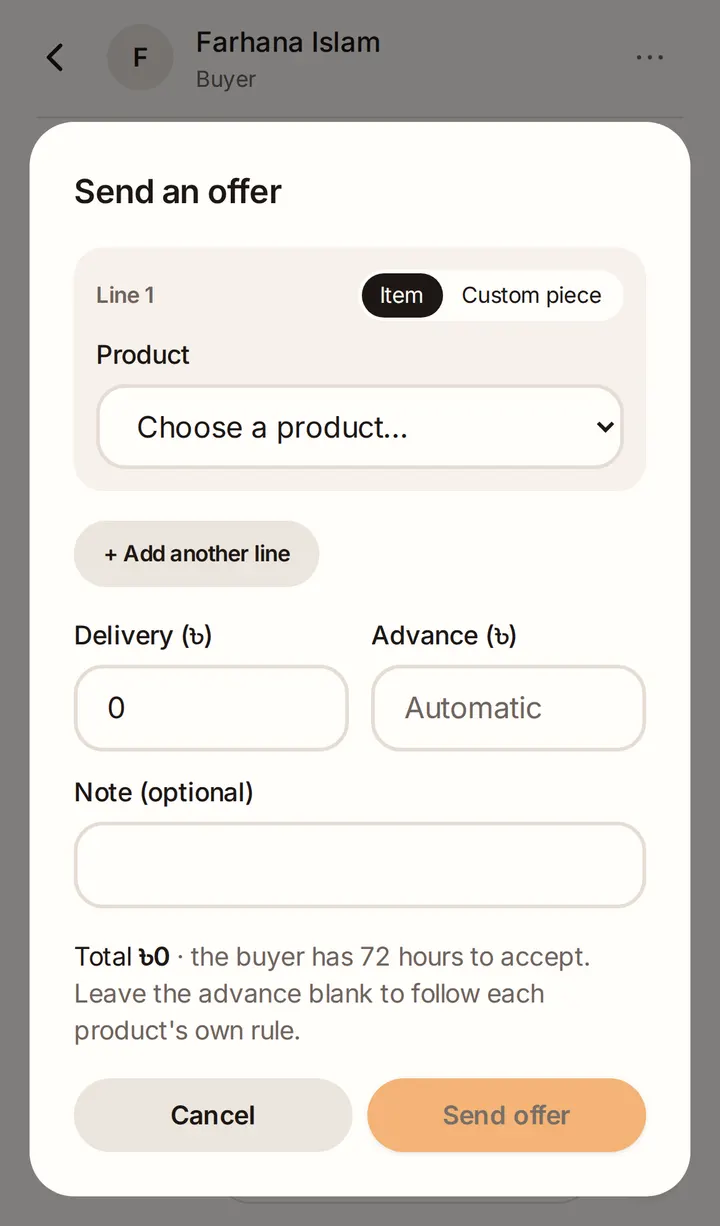
Tap the tag button in the chat to Send an offer. Add up to 10 lines: an Item from your products, or a Custom piece you'll make. Set the quantity and price of each, the Delivery charge, an Advance if you want one and, for custom pieces, the Making time.
The buyer has 72 hours to accept. When they accept, the order is placed straight away and appears in your orders.
Close or report a conversation
Tap ··· in a conversation to Close conversation, or to Report a buyer for a scam, harassment or spam. You can reopen a closed conversation any time.
Chapter 11
Campaigns and coupons
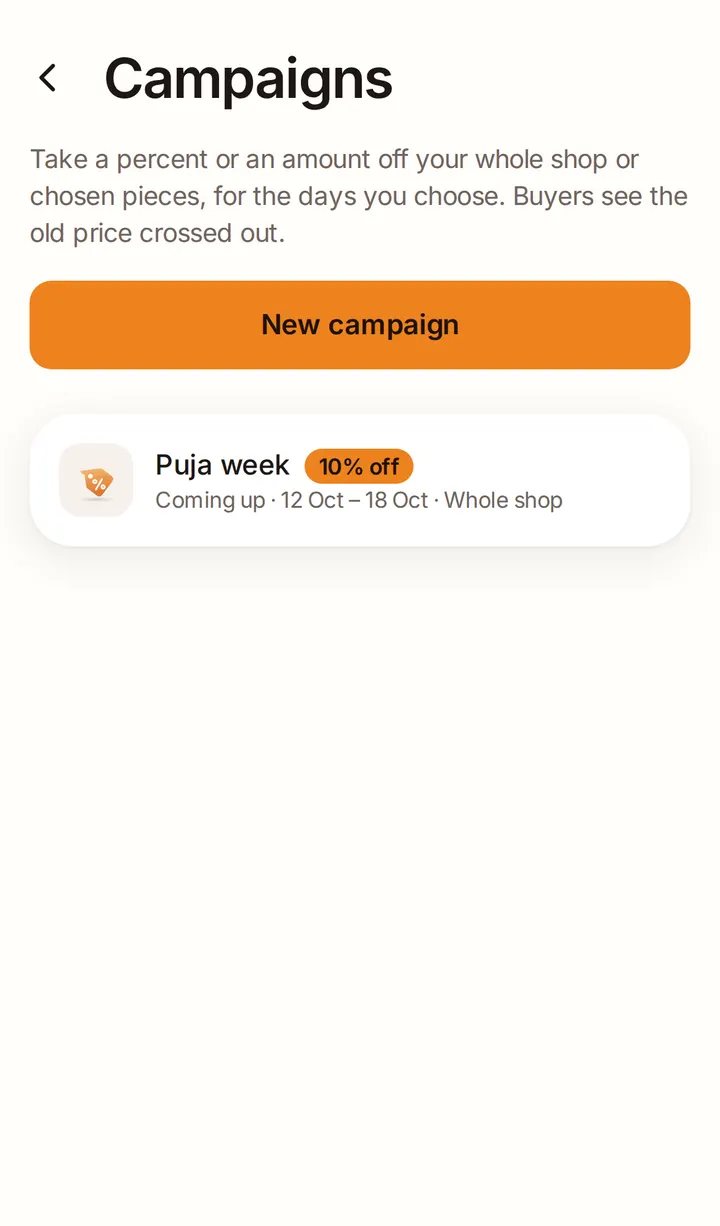
There are two ways to give a discount. A campaign takes a percent or an amount off your whole shop or chosen products for a few days, and buyers see the old price crossed out. A coupon code gives money off only to buyers who type the code at checkout.
Start a campaign
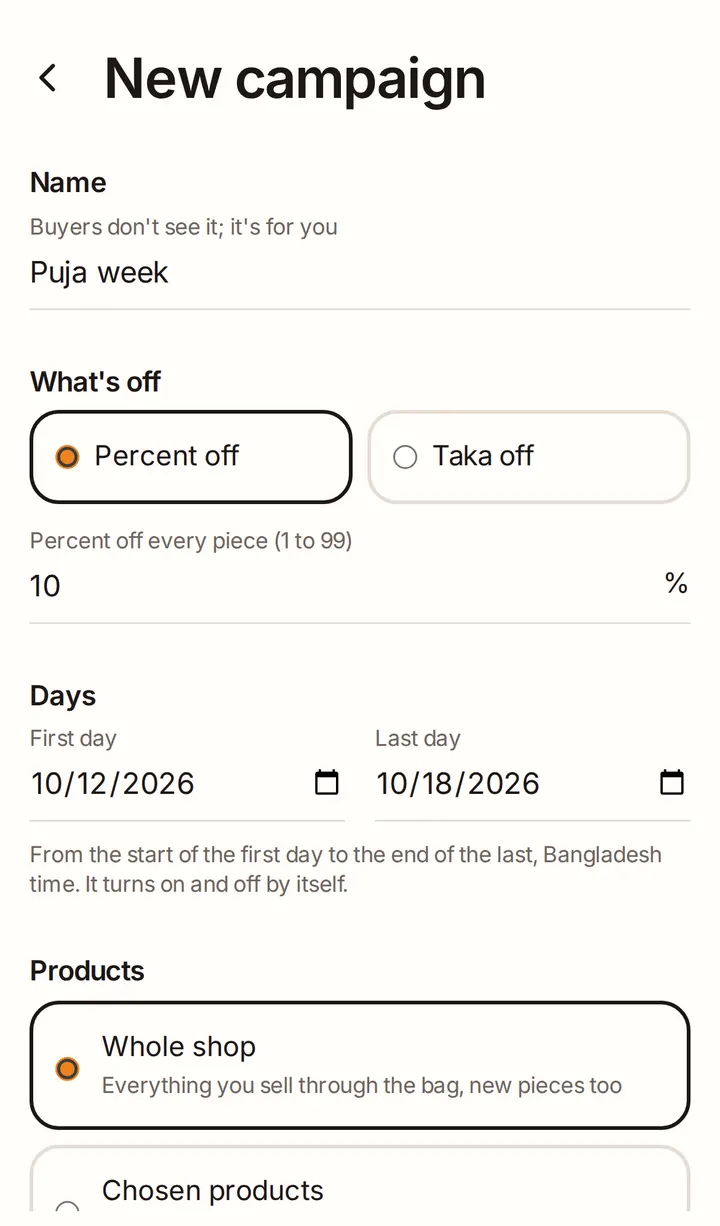
Open Campaigns under Manage and tap New campaign:
- Name: only for you; buyers don't see it.
- What's off: Percent off or Taka off.
- Days: the first and last day. It turns on and off by itself.
- Products: Whole shop or Chosen products.
- Celebration (optional): link it to an upcoming celebration, such as Pohela Boishakh or Eid.
The preview shows the prices buyers will see. Tap Start campaign.
Honest prices
A crossed-out price must be a real price:
- You can't raise a product's price in the 30 days before a campaign, or while it runs.
- Only products with a product price can be in a campaign.
- A product can't be in two campaigns at once.
Change or end a campaign
Before it starts you can edit it, or Call off this campaign. Once it's running you can only End this campaign now: prices go back to normal straight away.
Coupon codes
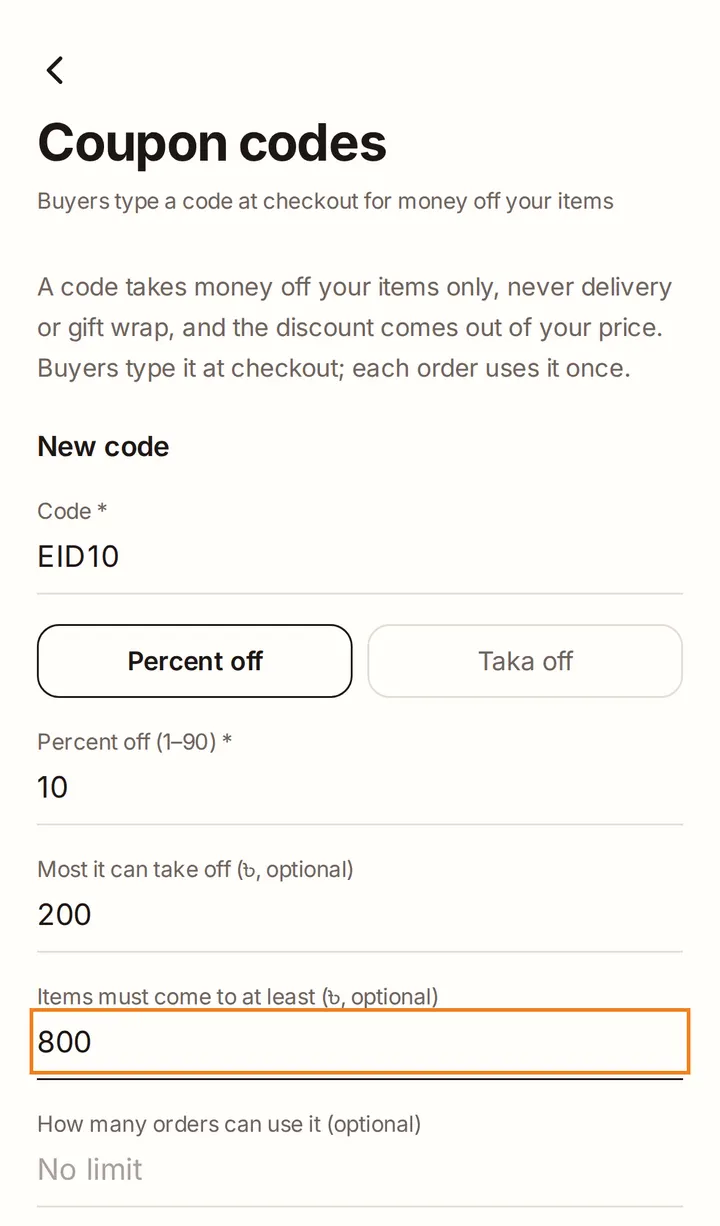
Open Settings → Coupon codes and tap Add a code:
- Code: what buyers type, such as EID10.
- Percent off (1 to 90) or Taka off. For a percent, you can set the most it can take off.
- Optional: a minimum for the items, how many orders can use it, and the dates it works.
Share the code on your Facebook page, Instagram or in chat. The discount is taken off your items only, never delivery or gift wrap, and comes out of your price. Each order can use a code once. You can Edit, Pause or Delete a code any time.
Chapter 12
Notifications
We let you know when something needs you, in three ways.
Counts on your buttons
- Orders in the bar at the bottom counts new orders.
- Your shop counts unread messages, new comments and videos that are ready.
- Your shop page shows the same counts in Needs you.
Email
We email you about your application, your shop (verified, paused, open again), your plan (payments, reminders before it ends, moving to Hobby), complaints about your shop, and when a video is ready or couldn't be processed.
The phone app
If you use the Shwetopadma app, it sends alerts for new orders, messages, your shop and support. You can choose which ones in Profile → Notifications.
Good to know
- Text messages (SMS) are only used for sign-in and verification codes.
Chapter 13
Rules, pauses and closing
The Creator policy keeps Shwetopadma fair for buyers and sellers. Read it in full any time: Profile → Get help → Creator policy. It also covers what can be sold, originality and product quality.
The main rules
- Sell your own products, with your own photos and honest descriptions.
- Answer buyers within 48 hours.
- Deliver what you showed, on time, at the price you listed.
- Answer complaints in Support within 2 days.
Complaints and strikes
A buyer can complain to us about your shop. We email you, and you answer in Support. Three upheld complaints in 12 months, or one serious one, can pause or close your shop.
If your shop is paused
Your shop page says Your shop is paused. Buyers still see your shop page and details, but not your products, and you can't post or take new orders. Deliver every order you've already received and keep answering your buyers. Tap Write to us to sort it out to talk to us.
Close your shop
In Settings, tap Close shop. You need to deliver or cancel every open order first. Closing deletes your products and posts and wipes your payment details; your account stays. To sell again later, apply again.
Chapter 14
Questions and fixes
Why can't I publish?
- Your shop needs a return policy: Settings → Returns and refunds.
- A product needs a price: choose Product price or Custom order.
- If your category has smaller groups, choose one.
- Your plan's live-product limit is full: unpublish a product, or move up a plan on Your plan.
- Custom-order products need Starter or Growth.
- If your shop is paused, you can't publish until it's open again.
I can't add a video
Videos come with Starter and Growth. Open Your plan from your shop page to move up.
My video says Processing
Preparing a video usually takes a few minutes. You can save and leave: we'll let you know when it's ready. If it says Couldn't process, remove it and try again, or try a shorter video.
My video stops uploading
Keep the page open and your phone awake until the upload finishes. If it fails, tap Try again.
I have too many feed photos
Each product has a limit of photos in the main feed. When you go over, choose which photos to swap out, or keep the new ones off the feed. They still show on the product page.
How do I change my mobile number?
Open Profile → Account settings and change it there. You'll verify the new number with a code.
A buyer says they paid but I can't see it
Check the transaction ID they entered on the order against your bKash, Nagad, Rocket or bank statement. Only tap Payment received when the money is there. If something seems wrong, message the buyer, or Report the conversation.
How do I contact Shwetopadma?
Open Profile → Get help, then Write to us to send a request. We reply in the same place.
Chapter 10
Comments
Buyers can comment on your products and posts. New comments are counted on Your shop in the bar at the bottom until you open them.
1Reply
Tap Reply under a comment. Your replies carry a Shop badge, so buyers know it's you.
2Remove or report
You can delete any comment on your own products. It then shows as Comment removed. Tap Report if a comment is abusive, spam or a scam, and our team will look at it.