
Chapter 9 of 14
Messages and custom orders
Buyers can message your shop about a product or a custom order. Open Messages under Manage. Try to answer within an hour: it's one of the steps to get your shop ready, and buyers order more from shops that reply.
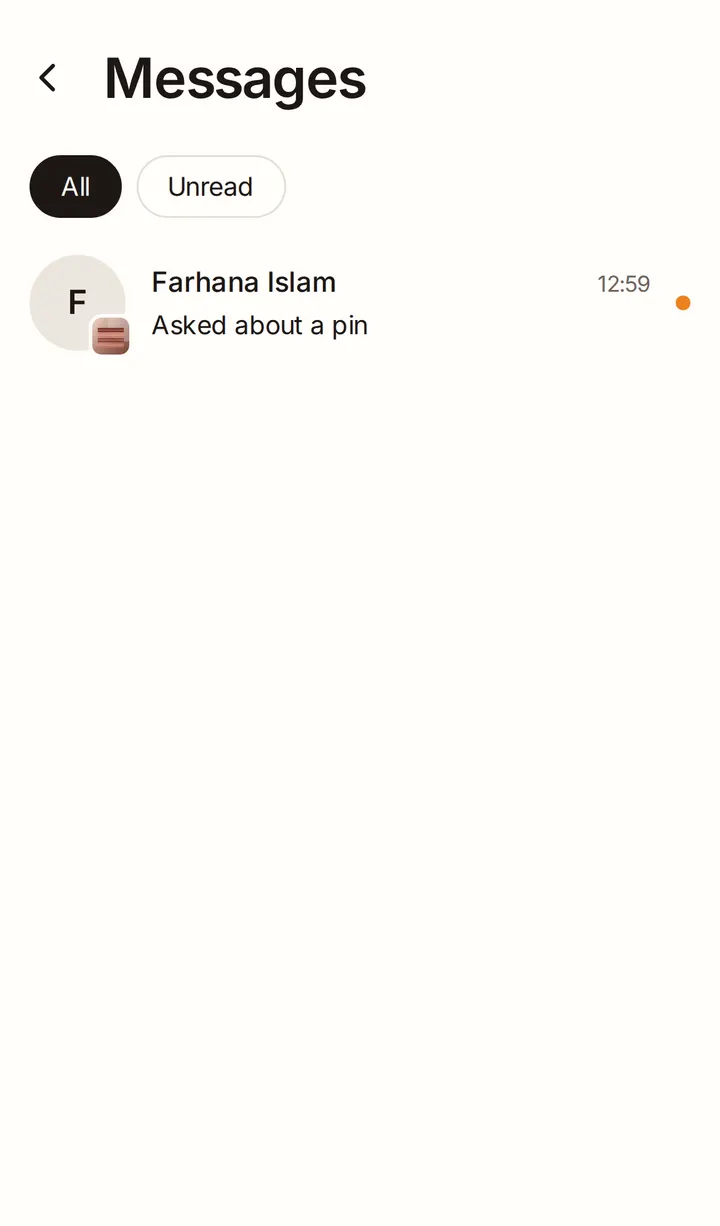
Chat with a buyer
Write messages and send photos. If the buyer asks about a product, its card shows in the chat. Their latest order with you is pinned at the top.
Custom order requests
If you show Request a custom order on your shop, buyers can send you a request: what they'd like, their budget, when they need it and a reference photo. It arrives as a card with the button Send a custom offer.
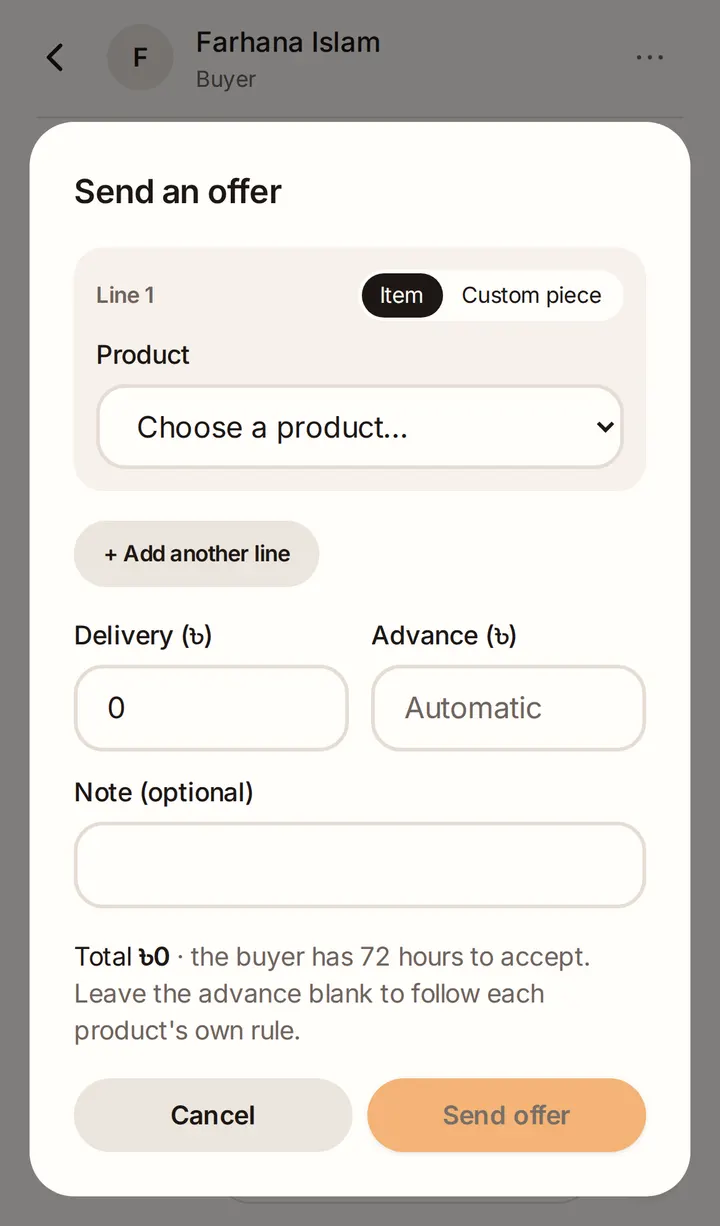
Send an offer
Tap the tag button in the chat to Send an offer. Add up to 10 lines: an Item from your products, or a Custom piece you'll make. Set the quantity and price of each, the Delivery charge, an Advance if you want one and, for custom pieces, the Making time.
The buyer has 72 hours to accept. When they accept, the order is placed straight away and appears in your orders.
Close or report a conversation
Tap ··· in a conversation to Close conversation, or to Report a buyer for a scam, harassment or spam. You can reopen a closed conversation any time.