
Chapter 8 of 14
Orders
Every order goes through four steps: New order, Confirmed, Shipped and Delivered. Open Orders in the bar at the bottom; the count shows how many new orders are waiting.
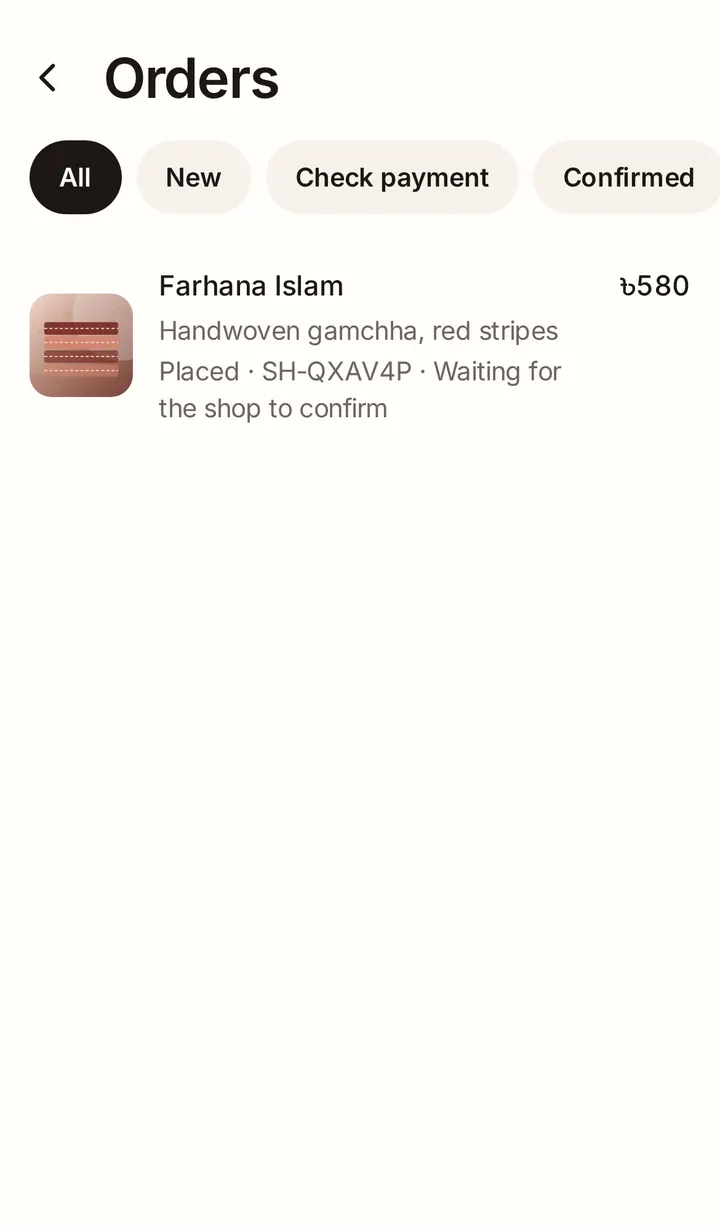
Confirm or decline a new order
Open the order to see the items, the total, the address and the buyer's verified phone number. Then:
- Tap Confirm order when you can make and send it.
- Tap Decline if you can't. Tell the buyer why, then tap Decline order. The stock goes back.
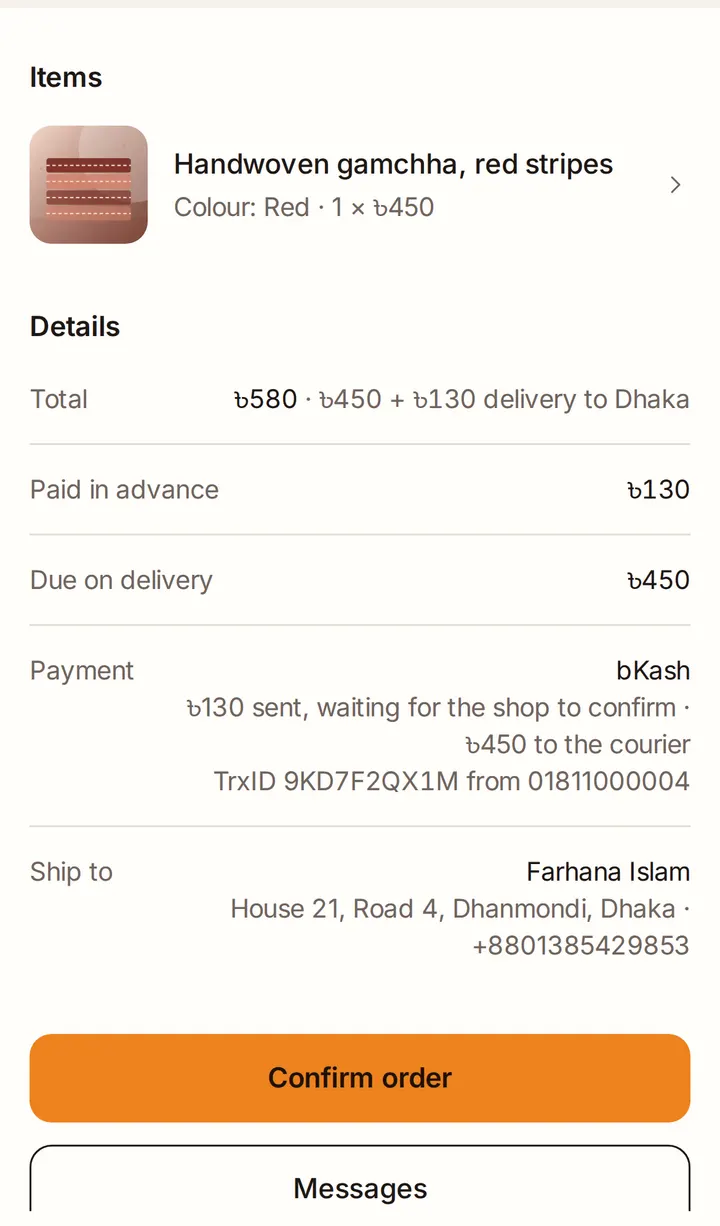
Check the payment
When a buyer pays an advance, they type in the transaction ID (TrxID) and the number they paid from. The order shows under Check payment. Check your bKash, Nagad, Rocket or bank account, and when the money has arrived, tap Payment received.
Good to know
- Never send an order because a buyer says they've paid. Check that the money has arrived first.
Send it
When the parcel goes out, tap Mark shipped. You can add a courier or tracking note. When it arrives, tap Mark delivered. If the buyer pays on delivery, this also marks the order as paid.
Gift orders
A gift order shows Gift order: no prices in the parcel. Leave out the price, invoice and receipt. If it asks for gift wrap or has a note for the card, it shows that too. If you have a question, message the buyer, not the person receiving it: it's a surprise.
How stock works
Stock is taken when an order is placed, and goes back if the order is declined or cancelled. Only the buyer can cancel, and only while the order is new.
Good to know
- Every change you make posts a line in your chat with the buyer, so they always know where their order is.