
Chapter 5 of 14
Add a product
Add each thing you sell once, with its photos and price. Later you can post new photos about it any time.
Open Add product
Tap the orange + in the bar at the bottom, then Add a product. Or tap Add product on your shop page.
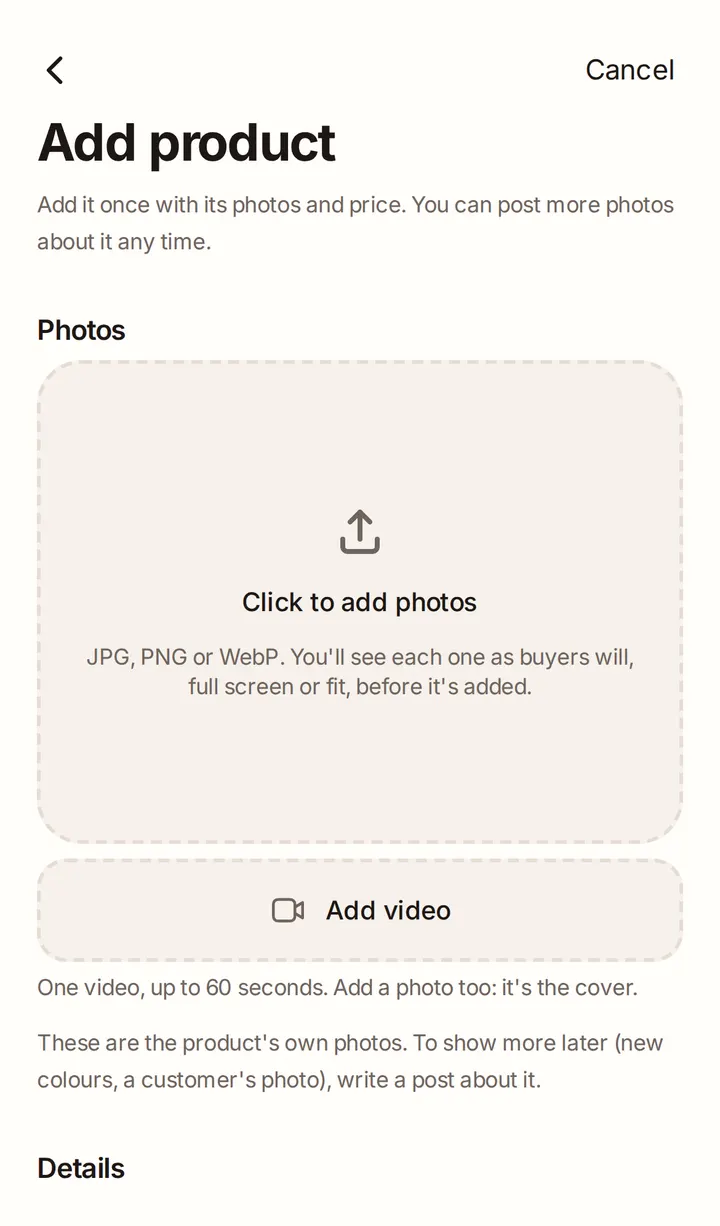
Add your photos
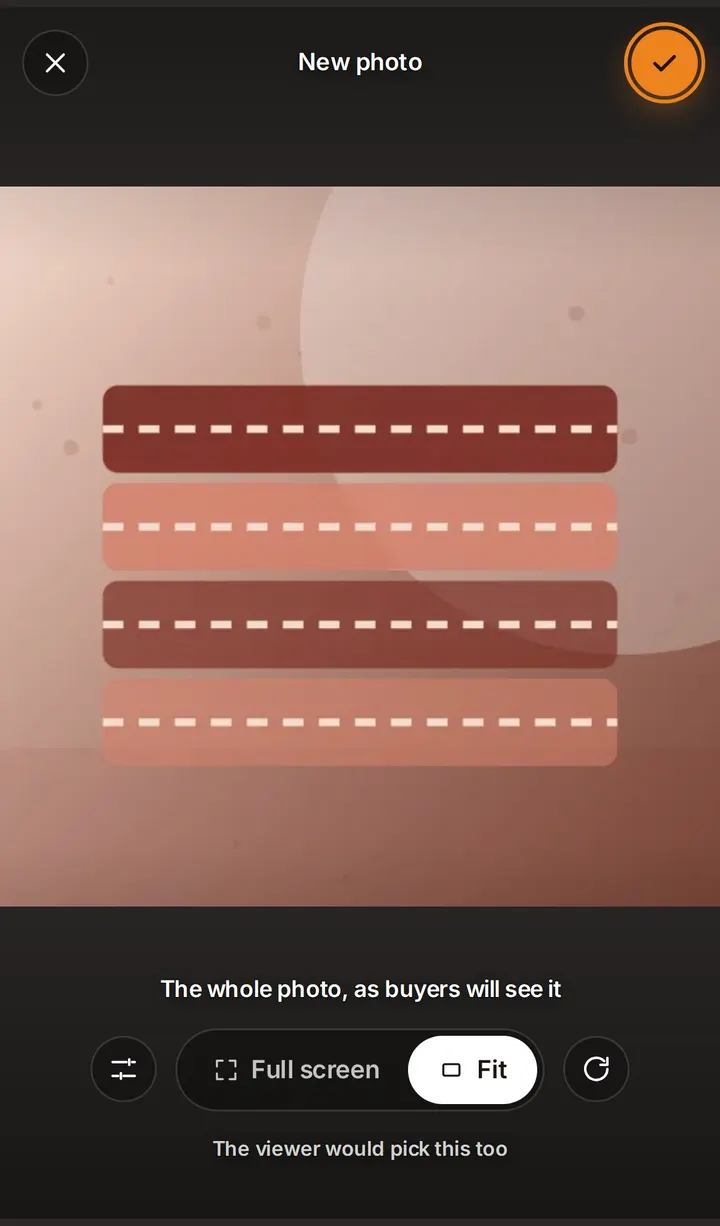
Tap Click to add photos and pick up to 8. Each photo opens full screen first, as buyers will see it:
- Full screen fills the screen. Drag to choose what shows, and pinch to zoom.
- Fit shows the whole photo.
- The sliders button opens Light and colour: brightness, contrast and warmth. The round arrow turns the photo.
Tap the tick to add the photo.
Check your cover
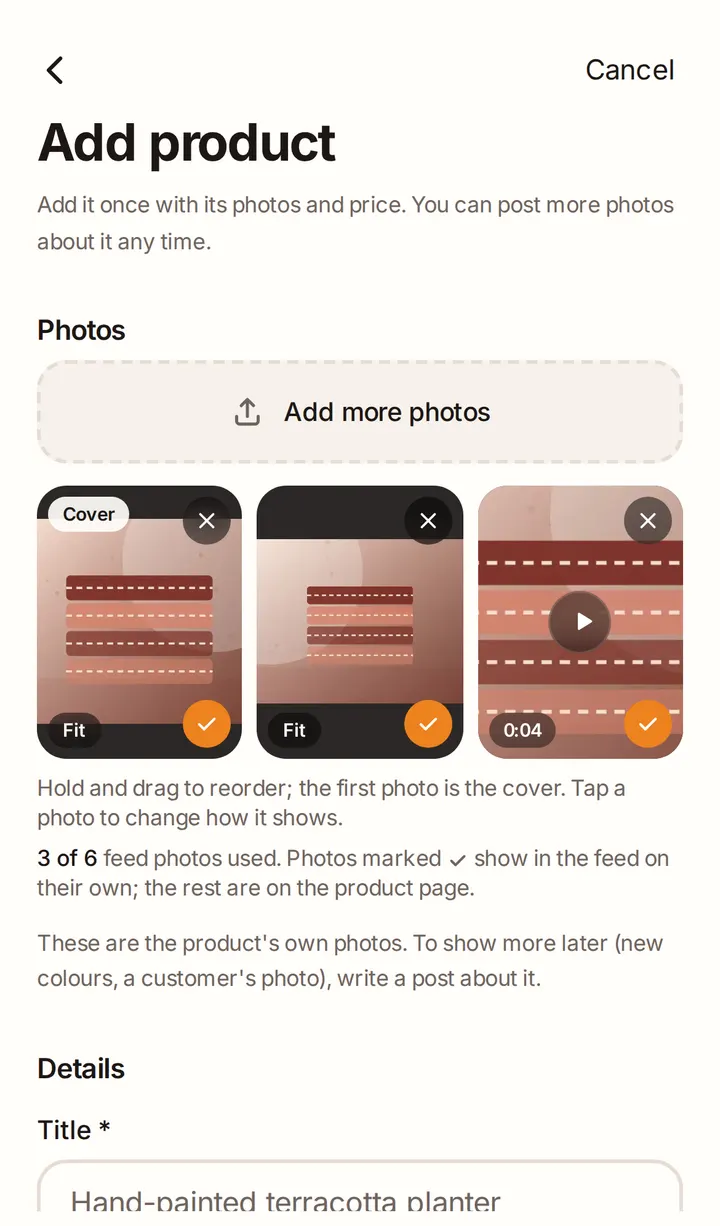
The first photo is the Cover: buyers see it first in the feed. Hold and drag a photo to move it. Tap a photo to change how it shows; there, the star makes it the cover.
Good to know
- Up to 8 photos. JPG, PNG or WebP. Large photos are made smaller on your phone before they upload.
- Photos marked with a tick show in the main feed; the others are only on the product page. There is a limit of feed photos per product (6 unless we change it). If you go over, we ask which photos to swap.
Add a video (optional)
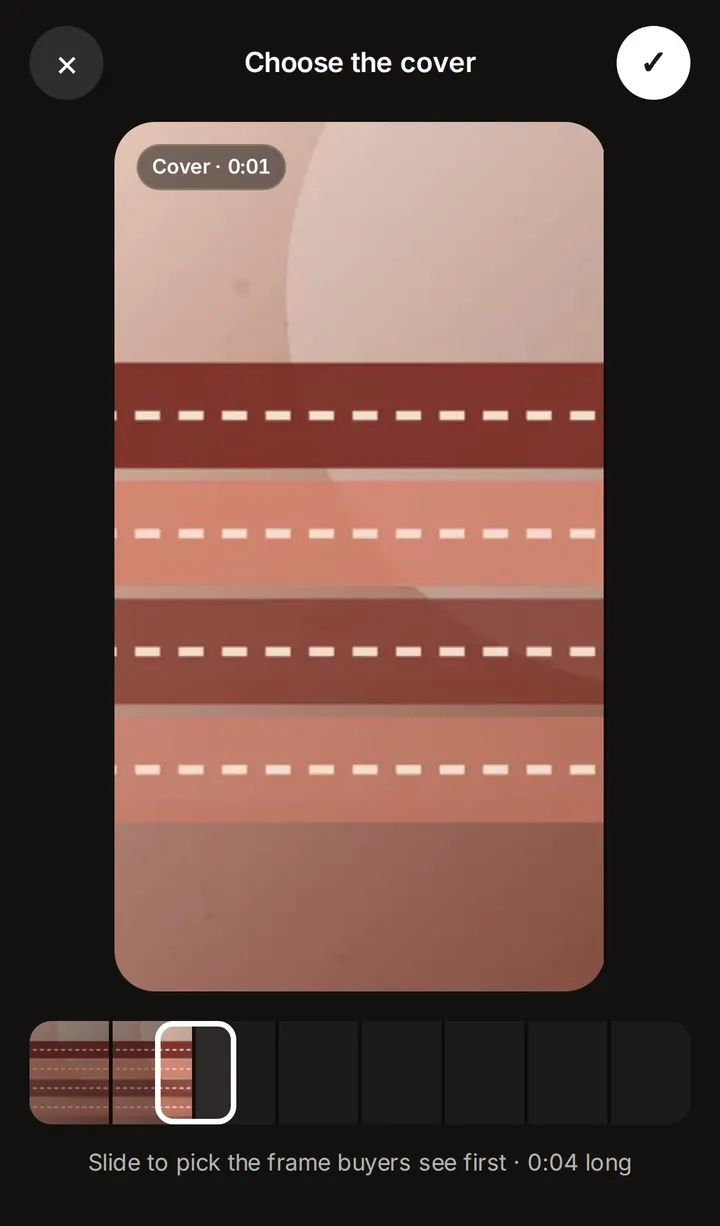
Videos come with Starter and Growth (see Plans and fees). Tap Add video and pick one video: up to 60 seconds and 200 MB. Slide to choose the frame buyers see first, then tap the tick. That frame becomes a photo.
The video uploads, then we prepare it so it plays smoothly on every phone. You can save the product straight away: we'll let you know when your video is ready. Buyers only see the video once it's ready.
Good to know
- One video per product. A photo is always the cover; the video goes after it.
- Keep the page open until the video has finished uploading (the tile shows Uploading with a percentage).
Write the details
- Title: what it is, in a few words.
- Description: materials, size, how it's made, delivery time.
- Category: choose where it belongs. If the category has smaller groups, pick one of those too.
- Tags: the words buyers search for, separated by commas. Up to 15.
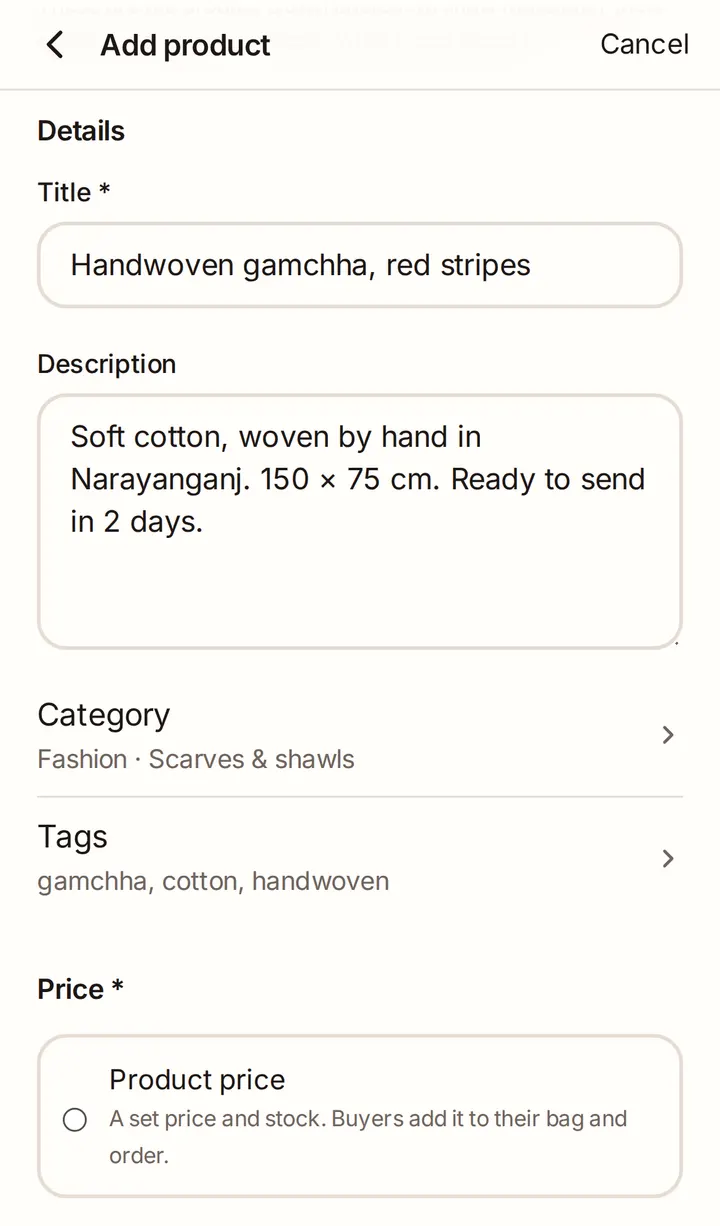
Choose how it's priced
- Product price: a set price and stock. Buyers add it to their bag and order.
- Custom order (Starter and Growth): made to the buyer's wishes. They message you, you agree the details and send an offer in chat. You can show a Starting price and a Making time.
For a product price, tap + Add option (colour, size…) if it comes in different versions: up to 2 options, such as colour and size. Then fill in the Price (৳) and Stock for each one.
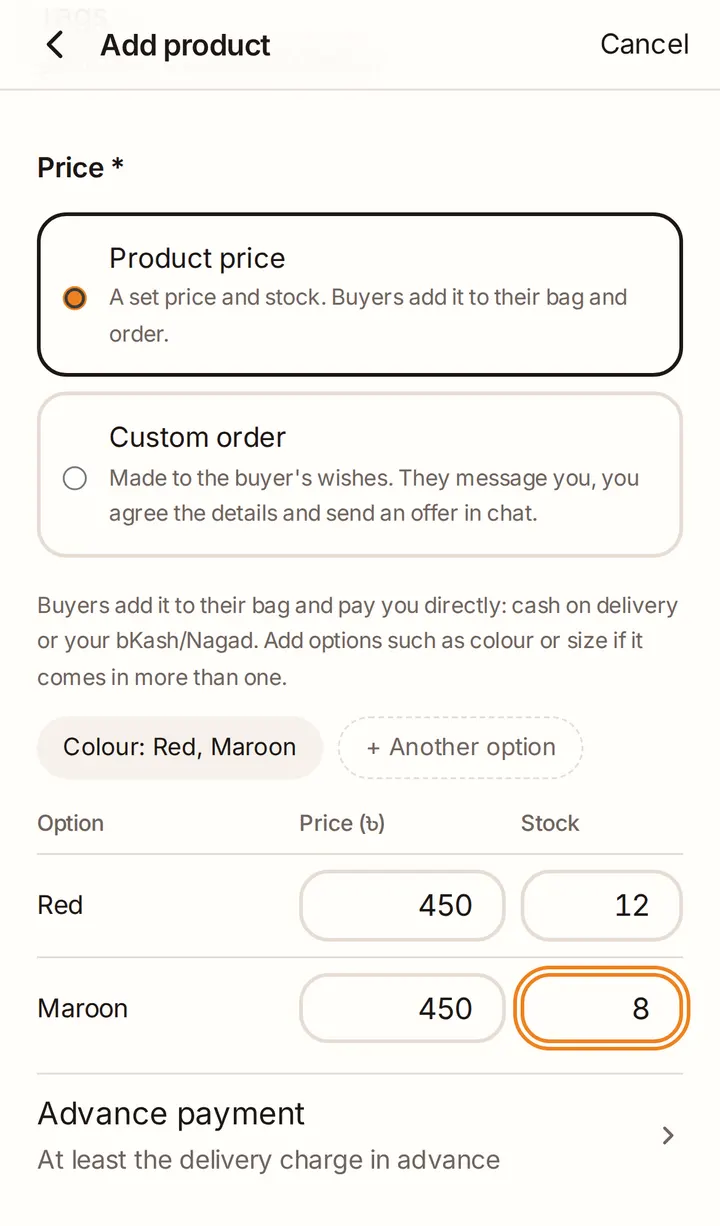
Advance payment
Choose what buyers pay before you send the order:
- Delivery charge in advance (the usual choice)
- No advance
- Fixed amount in advance, per piece
- Full price in advance
Buyers pay any advance by bKash, Nagad, Rocket or bank transfer. Cash on delivery is only offered when nothing is due in advance.
Publish
Tap Publish and it's live. Not ready yet? Tap Save as draft and finish it later from Drafts on your shop page.
Good to know
- You can't publish until your shop has a return policy (Settings → Returns and refunds).
- Your plan sets how many products can be live at once: 10 on Hobby, 100 on Starter.
- Your first published product starts your new shop spotlight: 14 days when we show your shop to more buyers.