Chapter 7 of 14
Your shop page
Tap Your shop in the bar at the bottom to open your shop page. It is where you run everything.
Your numbers
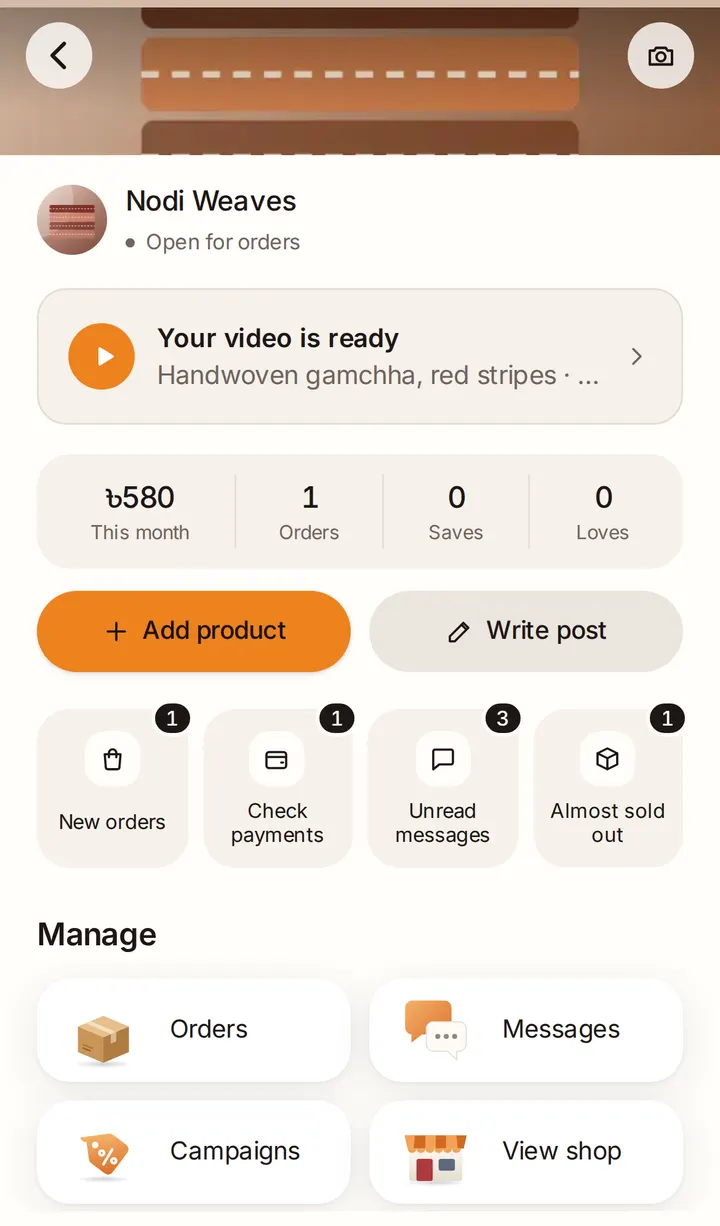
At the top you see This month (your sales since the 1st, without cancelled orders), Orders, Saves and Loves.
Needs you
Four tiles show what's waiting, each with a count:
- New orders: orders to confirm.
- Check payments: buyers who say they've paid.
- Unread messages
- Almost sold out: products with 2 or fewer left.
Manage
Orders, Messages, Campaigns, View shop (your shop as buyers see it), Settings and Guide (this guide).
Your products
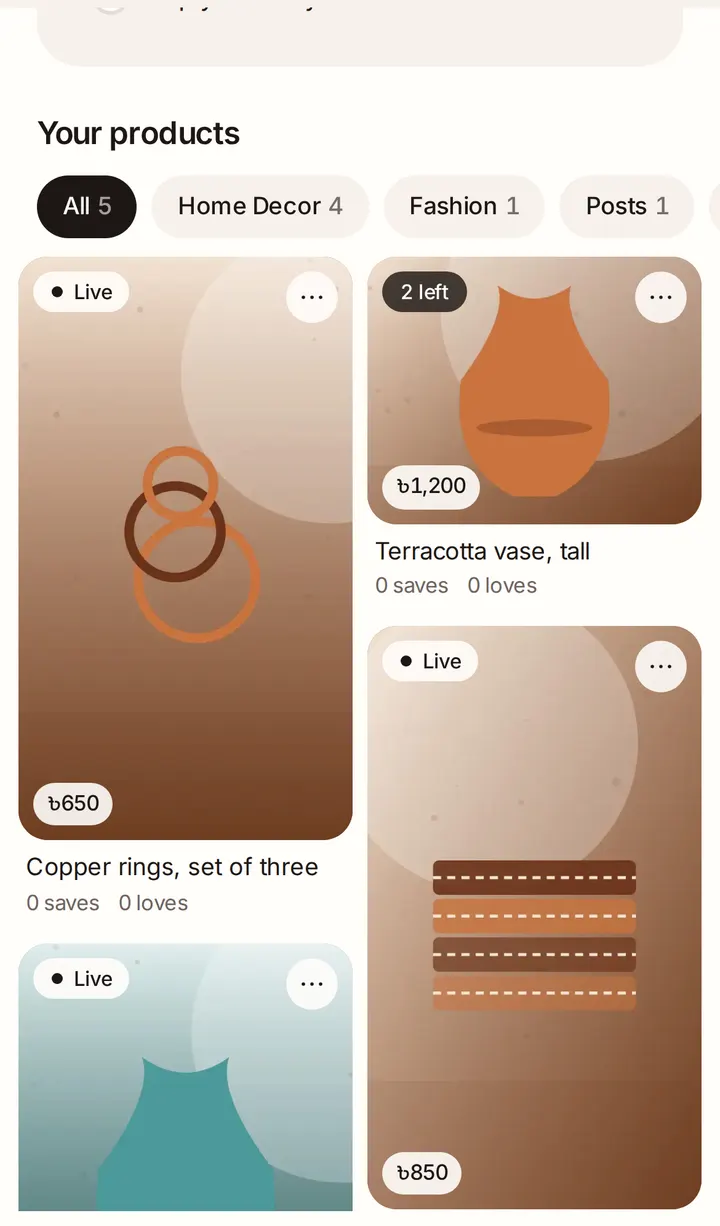
Under Your products you see everything you've added. The chips filter them: by category, Posts, Drafts and Almost sold out. Each card shows Live, Draft, how many are left or Sold out.
Tap ··· on a card to write a New post, Edit or Delete. Deleting a product also deletes every post about it, and it can't be undone.
Your new shop spotlight
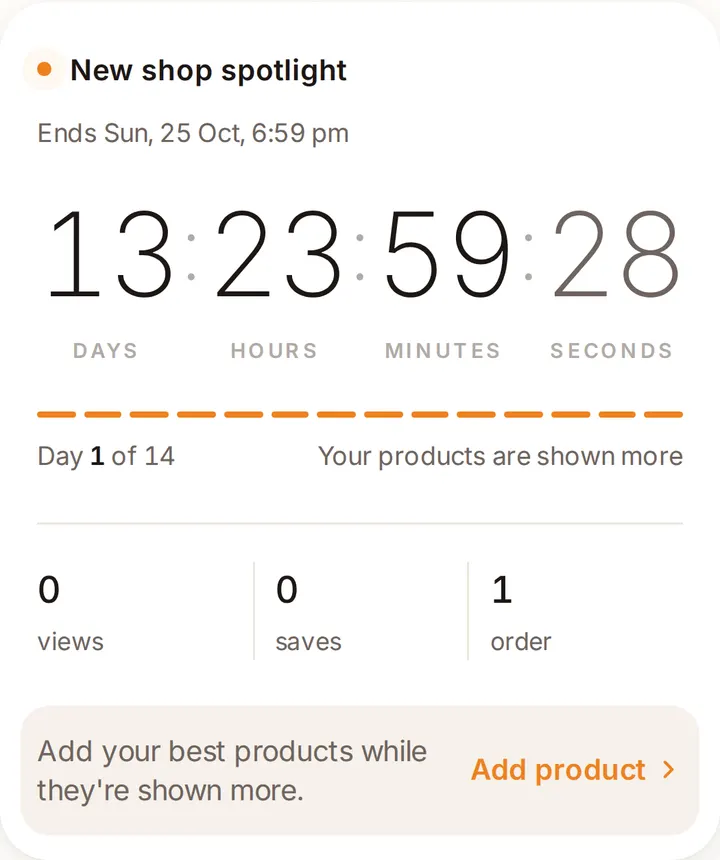
When you publish your first product, your shop gets a new shop spotlight: for 14 days we show your products to more buyers. The card counts down and shows your views, saves and orders. On the last day, post something new to make the most of it.